
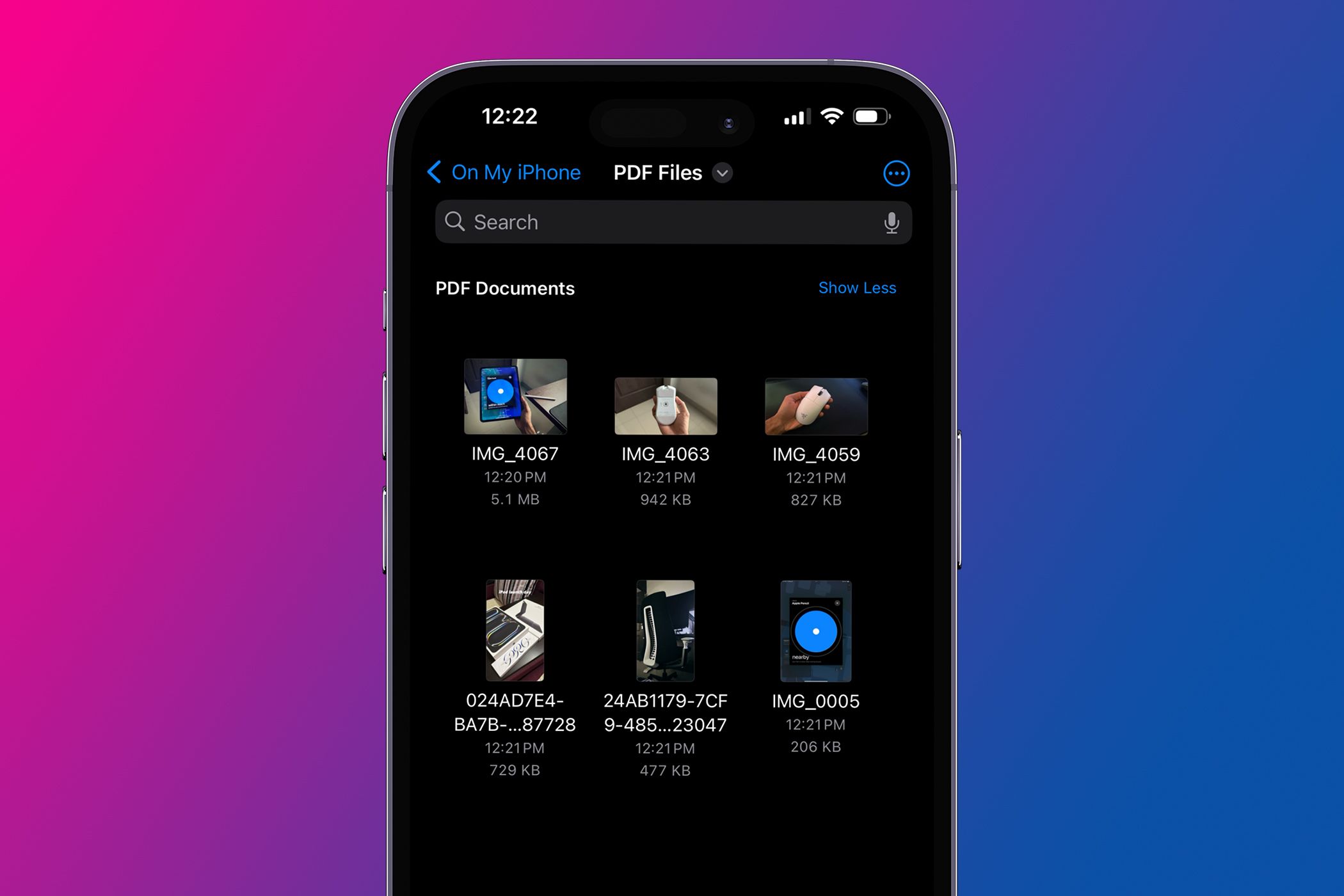
Here’s How to Save and Edit Photos as PDFs on Your iPhone or iPad
Key Takeaways
- You can use the built-in Photos or Files app to easily convert photos to PDFs on an iPhone or iPad.
- Apple’s Photos and Files apps can also combine multiple photos into a single PDF file.
Thanks to built-in apps like Photos and Files, you don’t need a third-party app to turn photos into PDFs on your iPhone or iPad. You can also use these apps to make minor edits to the PDF. You can learn all about it below.
Change a Photo Into a PDF in the Photos App
The first method to convert a photo into a PDF file is through the Photos app. Before you begin, make sure that you have Apple’s Files app installed on your device.
Next, open the Photos app, then tap on the image you want to convert. Tap the Share icon at the bottom-left of the screen and choose Print. Long press on the print preview at the bottom. An enlarged version of the preview will appear and you’ll need to tap on that.
Your iPhone will now automatically generate a PDF file from the photo. Tap the Share icon on the bottom-left corner for more options available for the file. You can choose Save to Files to save the PDF or select a messaging app to send the PDF to someone else.
Change a Photo Into a PDF in the Files App
If your image is already in the Files app, you can also convert it to a PDF file there as well. In Files, long press the photo and tap Quick Actions > Create PDF.
A PDF version of your picture will immediately pop up next to the original.
Notice that the file name will be exactly the same though. To avoid confusing yourself, it’s best to quickly rename the PDF. Simply long-press the file, choose Rename, type your preferred file name, and tap Done.
How to Combine Multiple Photos Into a PDF File
The steps are similar to the above if you want to compile more than one photo into a PDF file. The Photos app method will be the quickest since most of us store all our pictures there.
In Photos, tap Select and tap on all the photos you want to include in your PDF file. Then, press the Share icon and choose Print.
Next, long press on one of the photos in the print preview and tap on the enlarged preview. Your iPhone will then generate a PDF showing one image per page.
Besides using the Photos app, you can also use Files, Books, or a third-party tool to combine multiple images into a PDF on your iPhone.
How to Edit a PDF File on Your iPhone or iPad
To edit a PDF file on your iPhone or iPad, go to the Files app where your PDF is saved, tap to open the PDF, then tap the Markup icon.
Here, you can draw lines and add shapes in various colors. A ruler is present to allow you to draw straight, measured lines where necessary. You can also add stickers, your signature, and text. You have the option to add and remove pages from the PDF as well.
So, if you need a photo (or more) to be in a PDF rather than the usual JPEG or PNG file, all you need are the options in the Photos or Files app.
As a final tip, if you want a PDF version of a Safari webpage, you don’t need to take multiple screenshots and painstakingly combine them afterward. There are a few built-in methods to quickly save a webpage as a PDF on your iPhone and iPad.