
This Hidden Option Is the Fastest Way to End Tasks in Windows 11
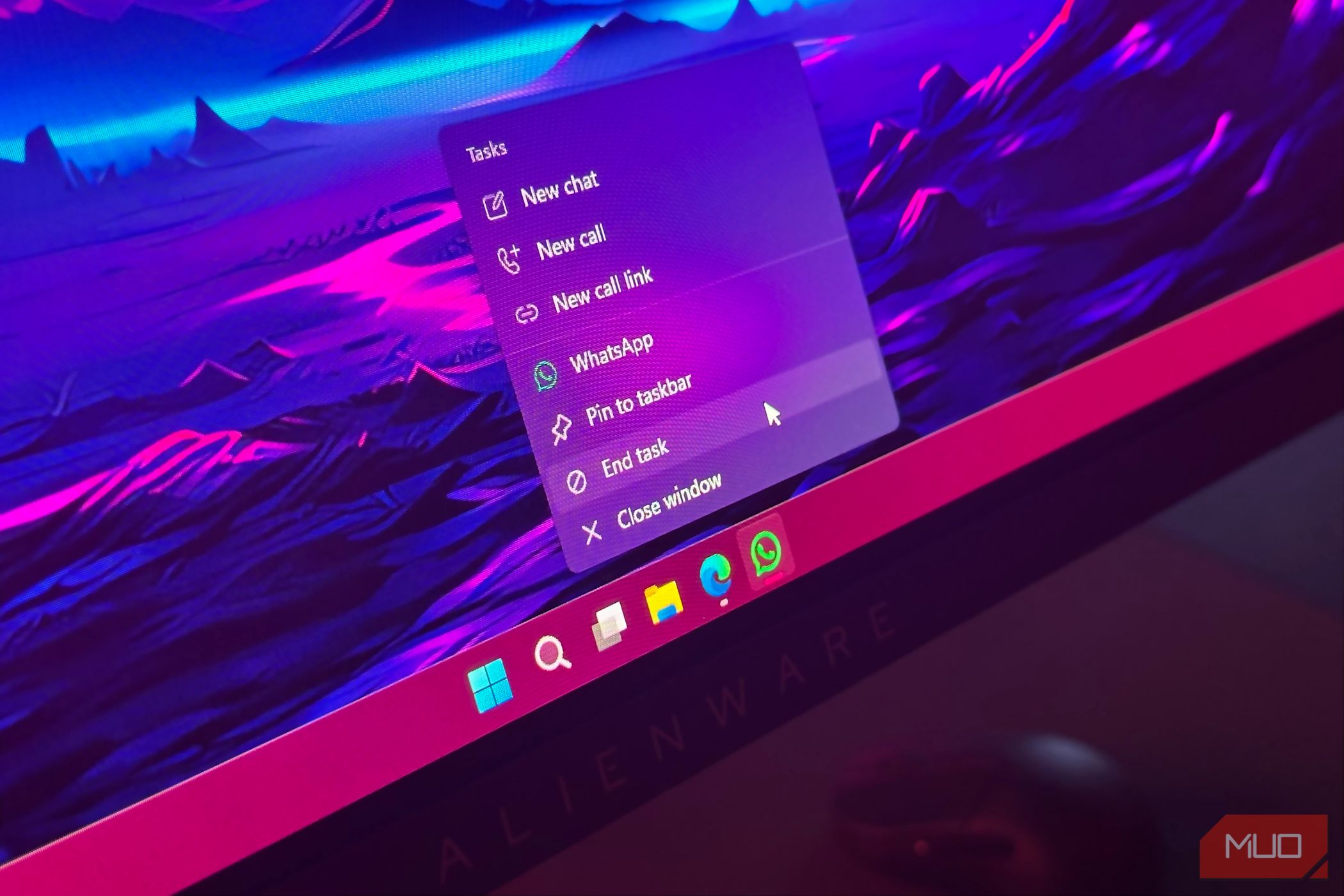
If your apps are always hanging, there’s a faster way to close them than by opening the Task Manager every time. Windows has a new feature that lets you end a task from the taskbar, but it isn’t quite “official” yet. We’ll show you how to enable and use it.
How to Enable the End Task Taskbar Option
To enable this handy feature, you’ll need to access Windows 11’s developer-only tools. Don’t worry if you’re not an advanced user; we’ll only enable a toggle and leave everything else untouched.
Press Windows + I on your keyboard to open the Settings app. Select System from the left sidebar, then scroll down and click For developers on the right.
Now, find the End Task toggle and turn it on.

Now, when you right-click an app on the taskbar, you should see a new option called End task. We’ll tell you more about it below.
What Does the End Task Taskbar Option Do?
Clicking the End task option will tell Windows 11 to shut down the app immediately. It’s a great way to force-close an app without using the Task Manager.
Selecting End task is a little different from when you X out of a window or right-click an app on the taskbar and select Close window. Doing the latter tells the app to close itself, which allows it to save your work, wind down what it’s doing, clean up after itself, and shut down in an orderly manner.
Choosing End task, on the other hand, tells Windows to terminate the app immediately. This method isn’t so nice; it asks Windows to force the app to stop what it’s doing and shut down, even if it is in the middle of something.
As such, if you just want to close a window, it’s best to close it normally so that it can properly wind down. However, if an app refuses to close when you ask it to—because it’s unresponsive—you can tell Windows to get rid of it instead.
Even though this handy feature is part of the developer options, it’s a handy way to manage unresponsive apps. Now, you can quickly and easily close them right from the taskbar. This is just one of the many ways to get the most out of the taskbar in Windows 11.