
An Intro to Using Conditional Formatting in Excel
Formatting data in your spreadsheet is a great way to make it stand out. With conditional formatting, you can take it a step further by automatically highlighting or changing the appearance of cells based on specific criteria. Here’s how it works and how you can use it.
What Is Conditional Formatting and How Is It Useful
Conditional formatting in Excel is a feature that allows you to automatically apply specific formatting to cells based on their content. By defining rules, you can change a cell’s appearance—such as its background color, font style, or borders—when certain conditions are met.
For instance, you can use conditional formatting to highlight cells in red if their values fall below a certain number or use another color for values above a target. It can also be applied to mark overdue tasks, identify low sales, or showcase top performers. By using color scales, icon sets, or data bars, conditional formatting makes patterns and trends easy to spot.
Conditional formatting is especially helpful for large datasets, where searching for important information manually can take a lot of time. It improves data interpretation and helps you spot trends, anomalies, and outliers more easily.
Applying Conditional Formatting
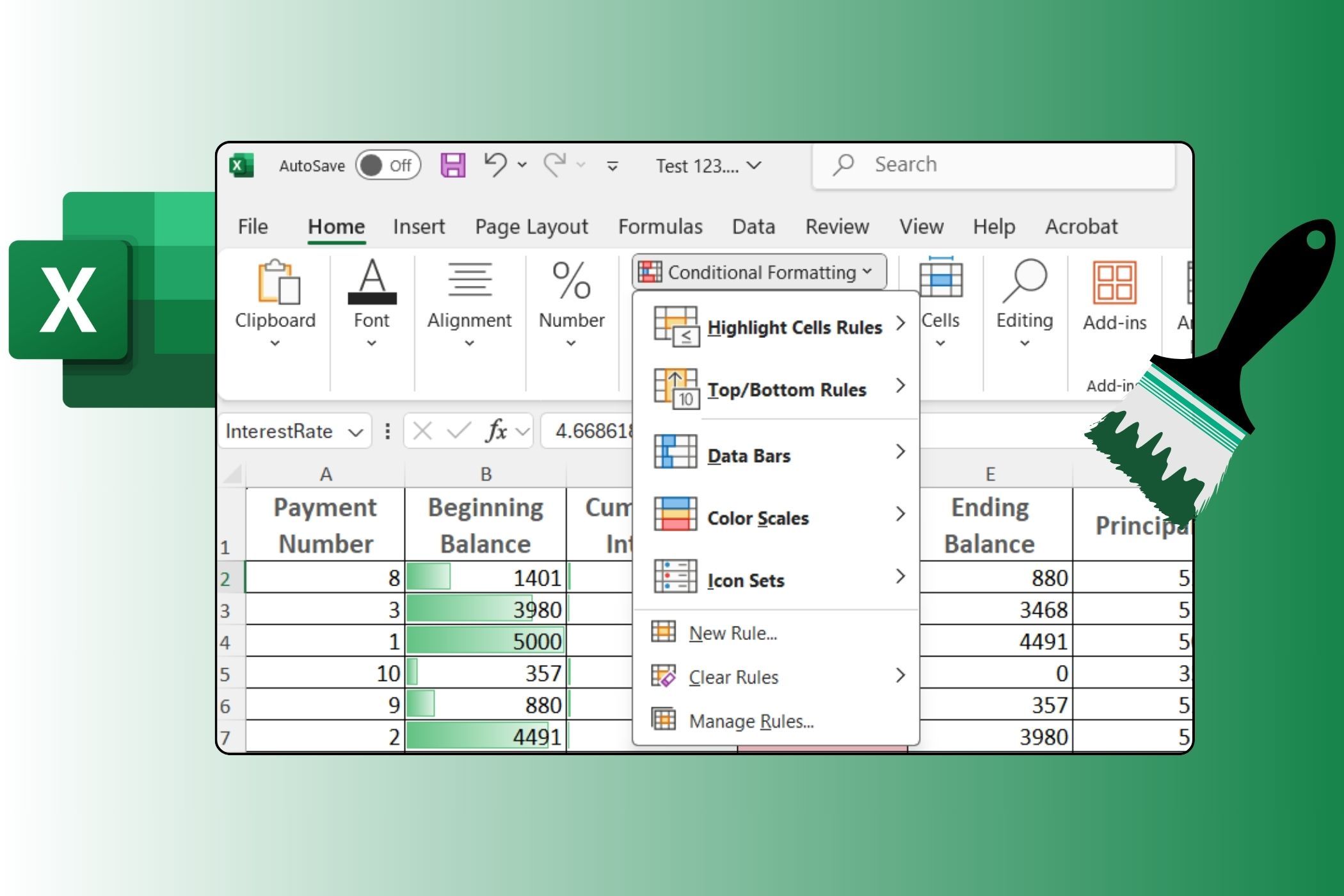
Whether you’re highlighting key performance indicators, identifying duplicates, or using color scales to represent data trends, Excel offers several predefined rules to choose from, as outlined below:
|
Formatting |
Use Case |
|---|---|
|
Highlight Cell Rules |
Format cells based on specific criteria, such as values that are greater than, less than, or equal to a particular number. |
|
Top/Bottom Rules |
Highlight the top or bottom values in your data set, helping to identify outliers or top performers. |
|
Data Bars |
Add visual bars directly within the cells to represent the relative size of the data values, making comparisons easier. |
|
Color Scales |
Apply a gradient of colors to indicate variations in data values, which can visually show trends and ranges at a glance. |
|
Icon Sets |
Use icons to represent different categories or ranges within your data, providing an immediate visual cue for analysis. |
To apply any of these predefined conditional formattings, follow the steps below:
- Highlight the range of cells you wish to format.
- Navigate to the Home tab, click the Conditional Formatting button, and select your preferred rule from the dropdown menu.
- In the dialog box that appears, enter the criteria for the formatting.
- Use the dropdown menu to choose your formatting style, or opt for the Custom Format option if you want to create a unique look.
- Click OK to apply the conditional formatting to your selected cells.
Excel also allows you to apply multiple rules to the same set of cells, allowing for more comprehensive data analysis. For example, you might use a color scale to show trends while also applying icon sets to indicate specific thresholds.
If none of the preset rules meet your specific needs, you can create one yourself. Here’s how:
- Select the cells you want to format and click Conditional Formatting > New Rule.
- Under Select the Rule Type, choose your preferred option.
- In the Edit the Rule Description, specify the formatting criteria.
- Click OK to format the data.

Clearing Conditional Formatting
If you find that certain conditional formatting rules are obsolete or no longer serve your analytical needs, clearing them and returning your data to its original appearance is just as simple. Here’s how to do it.
- In your Excel sheet, go to Home > Conditional Formatting > Manage Rules.
- Next to Show formatting rules for, click the drop-down menu to select This Worksheet or a specific sheet.
- Select the rule you want to remove and click the Delete Rule button.

Alternatively, you can select the range of cells from which you want to remove conditional formatting. To do that, go to Conditional Formatting > Clear Rules, and choose the option that best fits your needs.
Conditional formatting can transform your spreadsheets from simple tables into powerful visual tools. Take some time to experiment with different rules and formatting options to discover what works best for your specific needs. For further inspiration and practical tips, be sure to check our guide on using conditional formatting for home, school, business, or personal use.