

9 Ways to Make Your PC Run Like New Again
It’s natural for a PC to slow down over time, but it doesn’t have to stay that way. From running Disk Cleanup and tweaking the power plan to getting rid of unnecessary apps and files, here are a few things you can do to make your Windows PC run like new again.
Over time, your computer accumulates unnecessary files, such as old system files, temporary files, and cached data. These files not only consume valuable hard drive space but can also affect your PC’s performance.
Running Windows’ built-in Disk Cleanup tool can help you get rid of these files and make your PC run better by improving speed and storage efficiency. By using this tool regularly—ideally every few months—you can maintain smooth performance and prevent clutter from slowing down your system.
2 Limit the Number of Startup Apps
As you install new software on your PC, some programs may automatically add themselves to the startup list. While apps like antivirus software or cloud storage services need to run at boot, having too many startup apps can slow down your system.
This is because each app that launches uses valuable resources, like RAM and CPU power, resulting in longer boot times and decreased overall performance.
To address this, open the Task Manager by pressing Ctrl + Shift + Esc, then navigate to the Startup apps tab.
Here, you’ll see a list of programs set to launch when your PC starts. Review the list and disable any non-essential apps by right-clicking on them and selecting Disable. Afterward, your PC should boot faster, just like it did when you first got it.

3 Uninstall Unwanted Apps, Programs and Extensions
Another thing you can do to make your PC run like new is uninstall any programs you no longer use. This includes the bloatware that came pre-installed by the manufacturer. These unnecessary programs not only consume valuable storage space but can also negatively impact performance by running in the background and using system resources.
You can use the Control Panel or Settings app to get rid of these apps. After uninstalling, be sure to remove any files or registry entries left by the software. You can also use third-party tools like CCleaner to ensure a thorough cleanup.
In addition to apps and programs, browser extensions can also impact your PC’s performance. This is especially true if they are outdated or poorly optimized. It’s a good idea to review your browser extensions and remove any that are unnecessary or causing issues.
4 Enable “Best Performance” Power Plan
By default, Windows uses the “Balanced” power plan, which aims to strike a balance between performance and power consumption. This setting is ideal for everyday tasks but may limit your PC’s full potential during more demanding activities. If you notice lag or a decrease in responsiveness during tasks like gaming or multimedia editing, switching to the “Best Performance” power plan can help.
To do this, open Settings > System > Power & battery and click the drop-down menu next to Power mode to select Best performance. While it may slightly increase power consumption, especially on laptops, this mode can make your PC feel significantly more responsive.

5 Run a Malware Scan
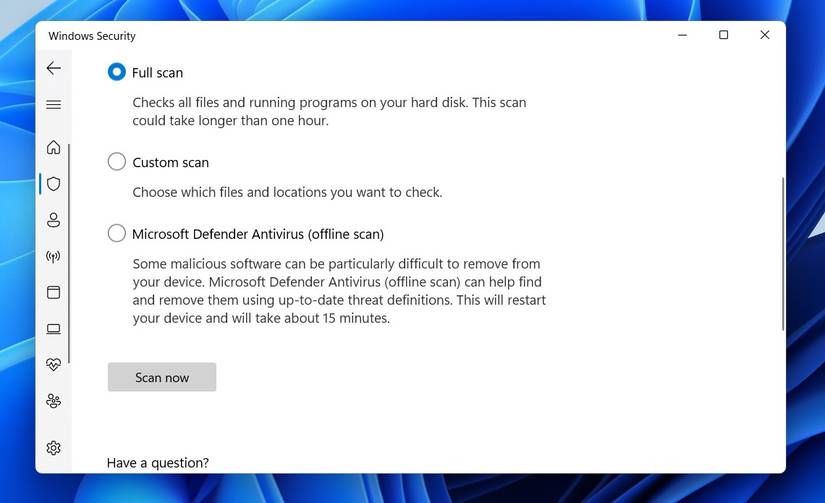
Even if you’re careful, malicious software such as viruses, spyware, and adware can sneak into your system over time. These harmful programs often run quietly in the background, consuming system resources and causing performance issues that may not be immediately noticeable.
To counter this, it’s essential to run regular malware scans using the Windows Security app or a trusted third-party antivirus software. Further, it’s best to set up weekly scans to catch potential threats early. I also recommend checking out other security options in Windows to keep your PC performing at its best.
6 Install Pending System and Driver Updates
Updates, whether for the operating system or drivers, are essential for maintaining your PC’s performance and security. Windows updates often include critical patches, new features, and fixes for known issues. All of these can help your PC run more efficiently.
Similarly, driver updates ensure your hardware—like graphics, audio, and network components—works smoothly with the latest software, enhancing speed and stability.
By regularly updating both your system and drivers, you can ensure your PC runs like new—or even better—thanks to enhanced functionality and optimizations that come with each update.

7 Defrag the Hard Drive
As you use your computer, files are saved in scattered fragments across the hard drive, creating a condition known as fragmentation.
When this happens, your hard drive has to work harder to retrieve data from various locations, slowing down task performance. This issue is more common in traditional HDDs and can make your computer feel sluggish compared to how it felt when it was new.
Defragmentation reorganizes fragmented files by arranging them into contiguous blocks on the hard drive. This process reduces the time it takes for your hard drive to locate files. Defragging can result in improved overall performance and faster load times. The good news is that defragmenting your hard drive on Windows is fairly simple using the built-in “Optimize Drives” tool.
8 Reinstall Windows
No matter how many software optimization tricks you try, they won’t be as effective as reinstalling Windows. This is a surefire way to give your PC a fresh start and make it run like new again.
Performing a clean installation of Windows wipes the slate completely, resolving these issues and restoring your PC to its original speed and stability. Although reinstalling Windows requires backing up your files and reinstalling your apps, the benefits make the effort worthwhile.
9 Add More RAM
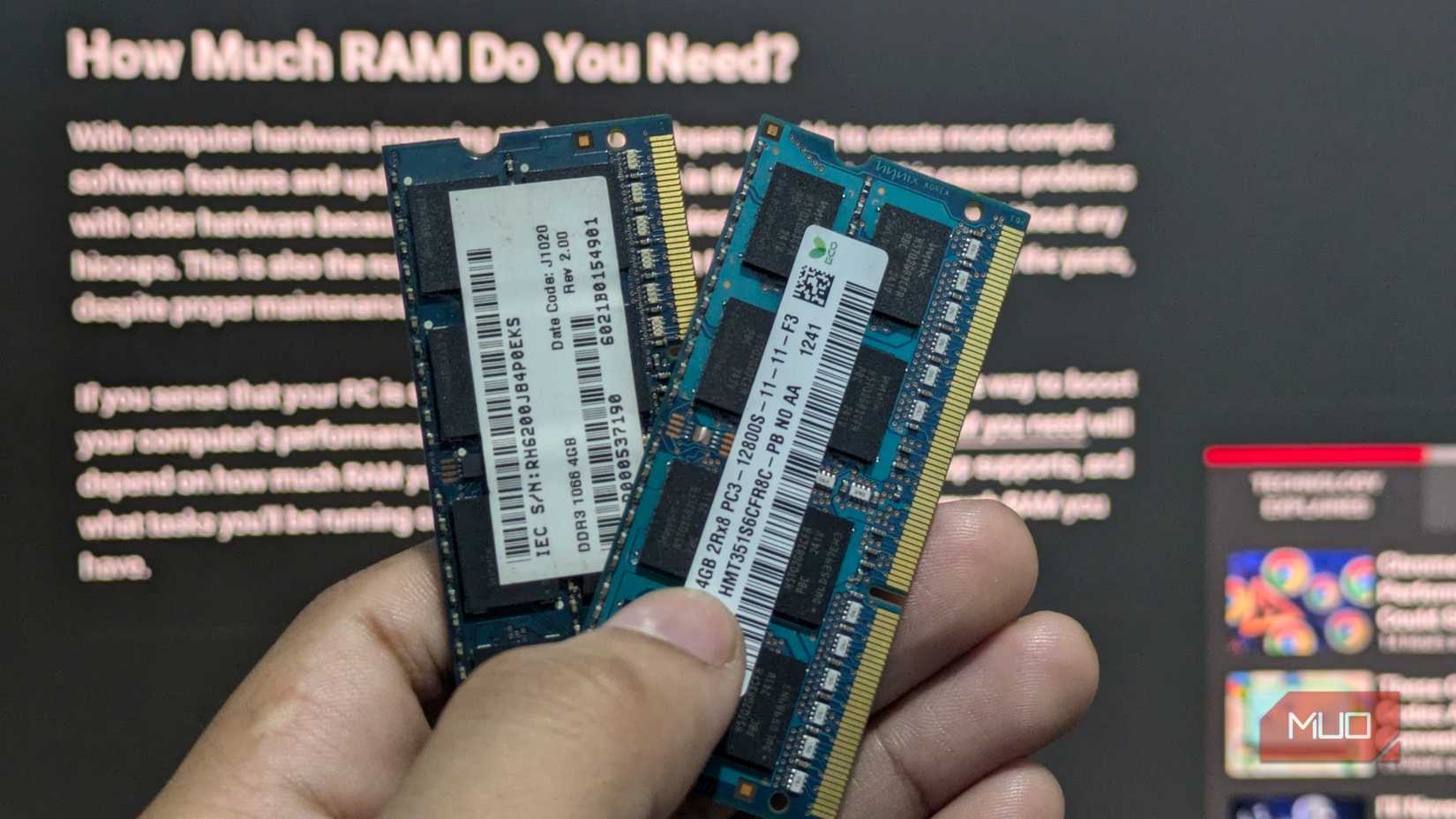
One final yet crucial step in improving your computer’s performance is adding more RAM. As you may already know, RAM is essential for your computer’s ability to handle multiple tasks simultaneously. The more RAM your computer has, the more data it can process at once. If you want faster loading times and a smoother multitasking experience, consider increasing the RAM capacity to at least 16 GB.
Before upgrading, it’s essential to check your PC’s specifications to determine the maximum amount of RAM your system can support. Most modern computers allow for easy RAM upgrades, and the process is relatively quick.
Maintaining your PC’s performance doesn’t have to be complicated. Sometimes, simply checking for updates and uninstalling apps you don’t use can help you breathe new life into your machine. Other times, you may need to resort to completely wiping Windows and staring over. Either way, using the steps outlined above should help you get your PC running smoothly again.