
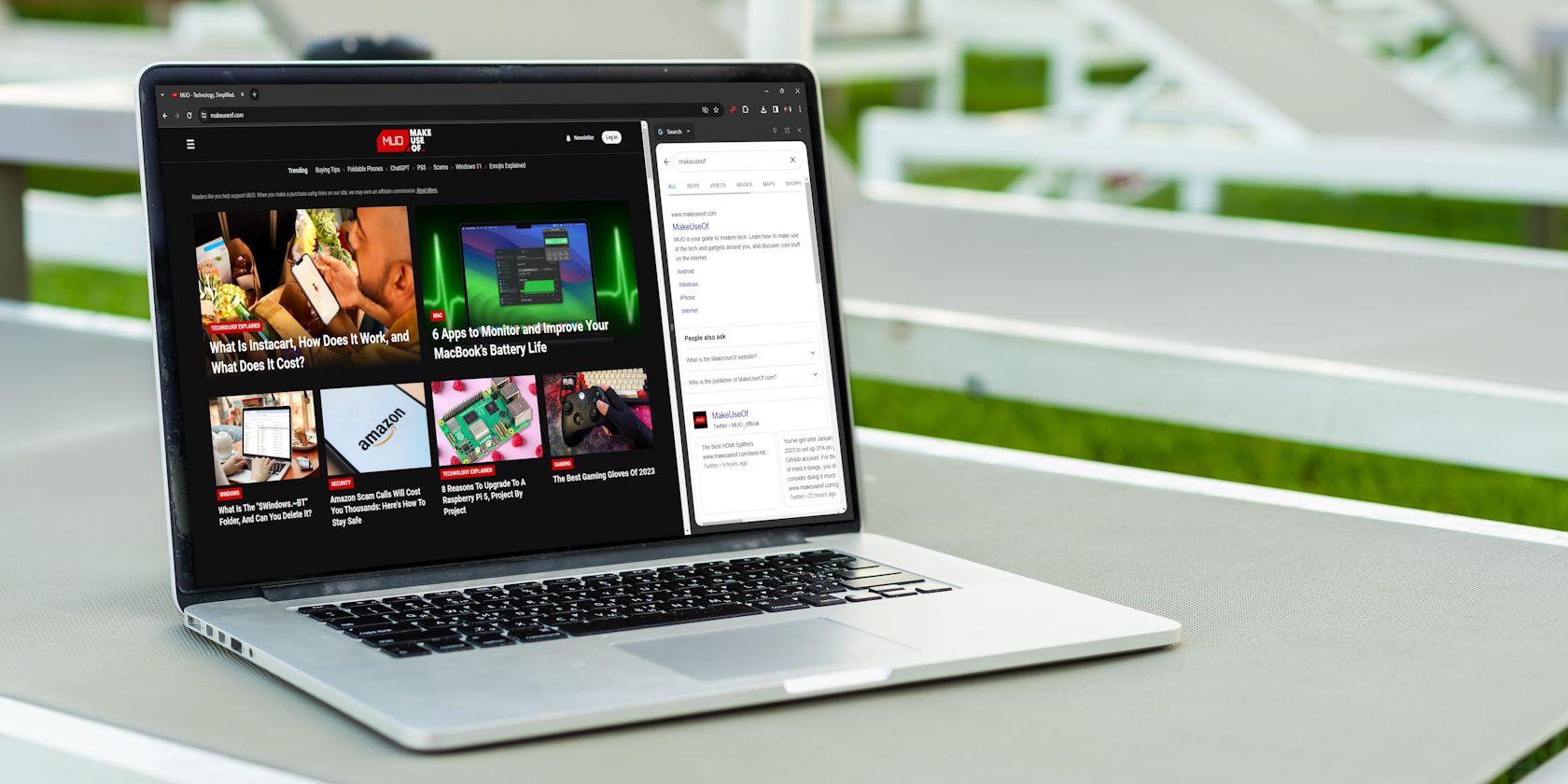
Chrome’s Side Panel Is the Best Browser Hack You’re Not Using
Key Takeaways
- Chrome’s side panel offers faster access to essential features, saving time and improving your browsing experience.
- You can view your bookmarks, reading list, and history directly in Chrome’s side panel without navigating to separate pages.
- Chrome now allows extensions in the side panel, offering additional functionality and convenience while browsing.
Google Chrome’s side panel is the best browser hack you’re not using, and it’s time for you to get up to speed. Chrome’s side panel offers faster access to the browser’s essential features—the ones you use every day—so you can waste less time online and enjoy a smoother browsing experience.
How to Access Chrome’s Side Panel
As its name suggests, Chrome’s side panel appears in a narrow window beside a web page. This makes good use of blank available space often unused by websites. Microsoft Edge has adopted a similar approach with its vertical tabs feature.
To access Chrome’s side panel, navigate to the top right corner of the browser window. Between the extensions icon and your profile icon is a square-shaped icon with a black strip on the right-hand side. Click on the icon to show the side panel.
When opening the side panel, you won’t be taken to a separate page. Instead, you can view your bookmarks, reading list, and history on the same page you’re browsing on.
How to View Your Bookmarks in Chrome’s Side Panel
The side panel’s bookmarks option offers a quick way to view your favorite sites without visiting the Bookmarks Manager. You can even reorganize your bookmarks directly from the side panel.
Accessing your bookmarks in Chrome’s side panel is simple:
- At the top left-hand side of the panel, click the drop-down menu.
- Click Bookmarks.
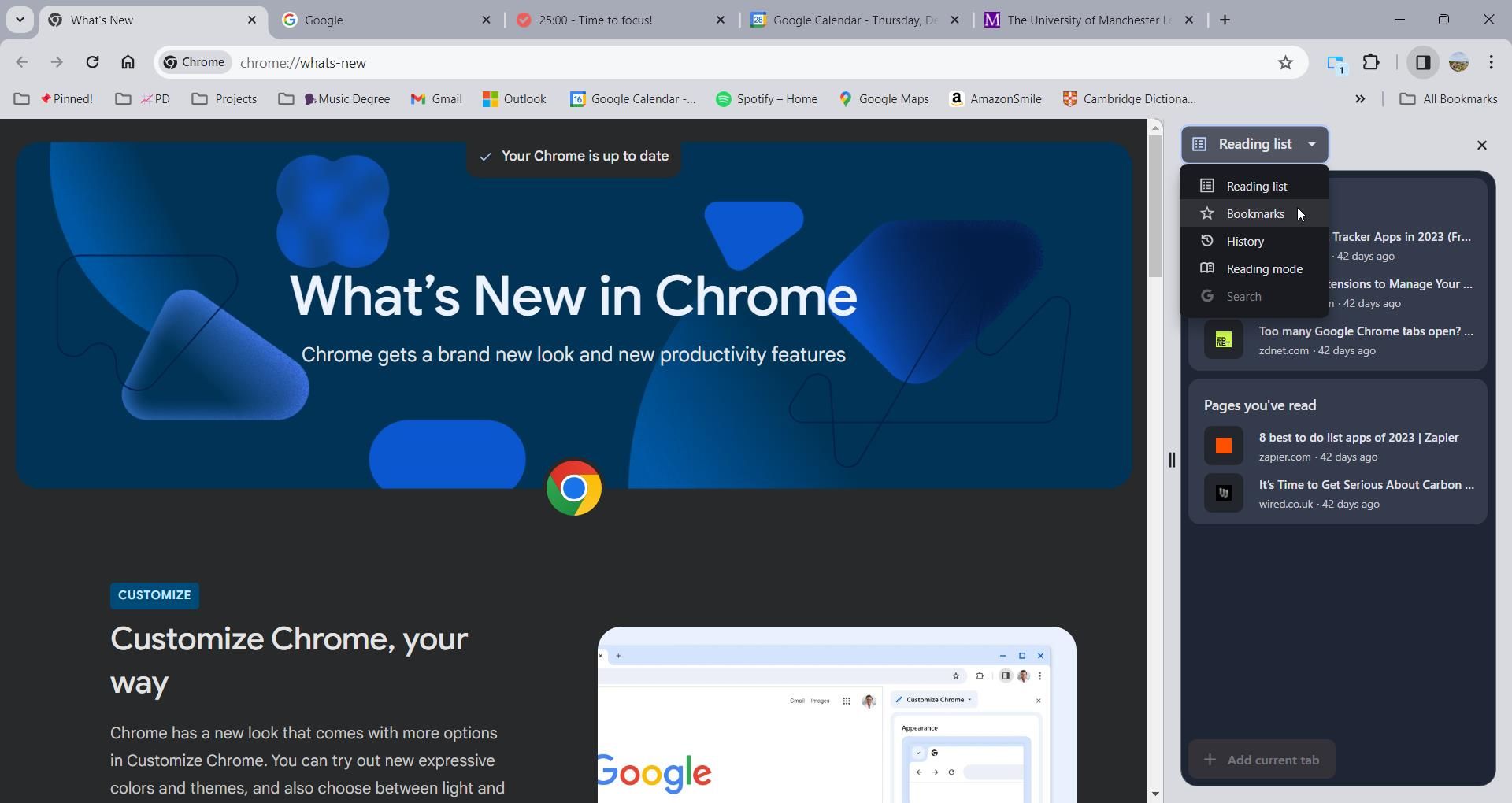

The integration allows you to search for bookmarks in two ways. You can either use the search bar or access the sorting options. There are many ways to sort bookmarks, including by their creation date, when they were last opened, or alphabetically. To access the sorting options, click the descending lines icon near the top of the side panel.

Another option is the Edit button. To access this tool, hit the small pencil icon next to the sort options. This feature lets you delete bookmarks or change their location. You can even create new bookmark folders inside the side panel. These features combined create an experience similar to Chrome’s bookmarks manager, except you can access all the features without navigating to a separate page.
How to View Your History in Chrome’s Side Panel

Instead of opening a separate page to view your history, you can view it directly from Chrome’s side panel. To access your history from the side panel, click on the drop-down menu at the top of the panel and select History.
Chrome categorizes your history into groups based on different browsing sessions. This makes finding related links easy. Alongside every group, you can click on the three-dot menu to access three extra actions:
- Open all in new tab group
- Hide all items
- Remove all from History
Beneath every group, you can also find some prompts relating to your search history, which can be useful for additional research. To remove an item from your history, click on the three-dot menu next to an item on the side panel. Then, select Remove from History.
How to View Your Reading List in Chrome’s Side Panel

Google Chrome’s reading list is a handy tool to save articles you’d like to read but don’t have the time currently. The reading list is split into two sections for convenience: read and unread pages.
To access the reading list from the side panel, hit the drop-down box and select the Reading List option. Adding new items to the list is simple. Navigate to the website you’d like to save, then click the Add Current tab button at the bottom of the side panel. Alternatively, you can right-click on any tab and select Add tab to reading list.
Managing your reading list is also easy. Hover over an item to view the action buttons. Click on the checkbox to mark an item as read or click the cross to delete an item. If you’d like to organize your reading list further, there are several Chrome extensions you can use to manage it.
You Can Also Use Some Extensions In Chrome’s Side Panel
Chrome has now given extension developers access to create an interface on Chrome’s side panel. Thanks to this access, you can use extensions like Side Panel Tab to view web pages in the side panel or Tab Shelf to use vertical tabs in Chrome. This smart solution helps to prevent clunky extension interfaces from getting in the way of your browser window.
Chrome’s side panel is one of the best browser hacks you might be missing out on. Especially if you own a wide-screen monitor, taking advantage of dead website space will guarantee you an efficient and productive browsing experience. Don’t waste time multitasking between several windows—use Chrome’s side panel to access all your browser essentials in one place.