
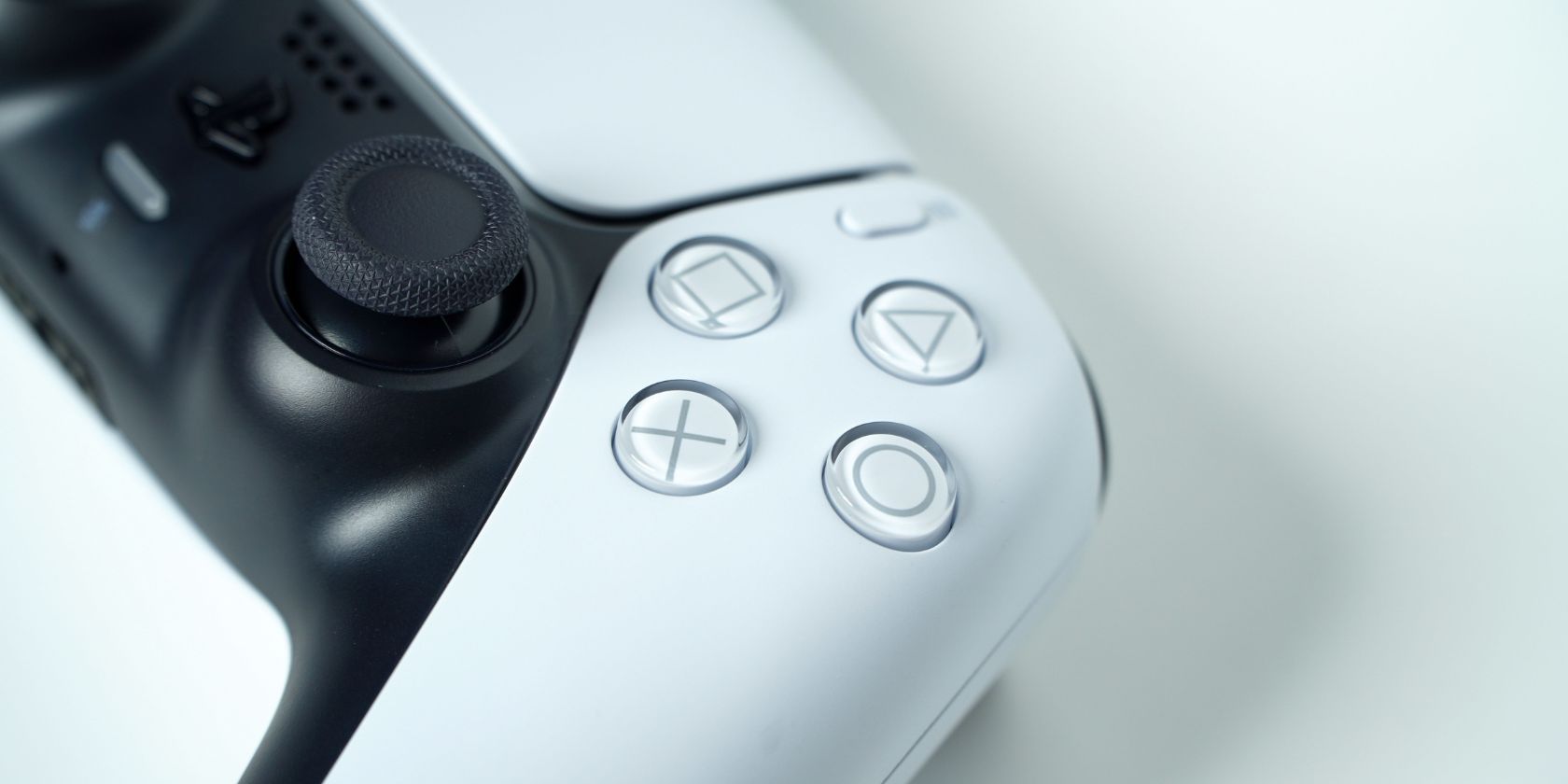
How to Connect a PS5 Controller to Your Phone
Key Takeaways
- Connecting your PS5 (DualSense) Controller to your phone improves the mobile gaming experience, especially with Remote Play.
- The DualSense Controller is compatible with devices running Android 12 or later and iOS 14.5 or later.
- You can connect a PS5 controller by using your phone’s Bluetooth settings and putting the controller in pairing mode.
Connecting your DualSense Controller to your phone can vastly improve your mobile gaming experience, especially when using Remote Play. If you want to use your PS5 controller with your smartphone, we’ve got you covered with this quick tutorial.
Which Smartphones Are Compatible With the PS5 Controller?
The PlayStation website states that the DualSense Controller is compatible with devices running Android 12 or later and iOS 14.5 or later. However, we were able to test the method on a device running Android 11 with no issues.
Not all Android devices are compatible with the DualSense Controller, however. The PlayStation website suggests consulting your device’s manufacturer to see if your device is compatible with the controller or not.
You can find information about your device’s manufacturer in the About phone section of your device settings.
But if that’s too much effort, you can also follow the steps below to see if it works for you. If not, you may have to stick with another Bluetooth controller for your mobile gaming endeavors.
How to Connect Your PS5 Controller to an Android Device
You can connect your DualSense to an Android device running Android 11/12 or later. To check what operating software your device is running, head to your device’s settings by pressing the Settings app.
Scroll down to About phone, and select Software information. There, you will be able to see what Android version you are currently running, and update it if necessary.

To begin connecting your PS5 controller to your Android device, head back to your Settings and press Connections.
Ensure the Bluetooth toggle is on and press the Bluetooth tab to open the menu.
Turn your attention to your controller, making sure the controller is off. If not, hold the PS button down for around seven seconds or until the controller light turns off.
Put your controller in pairing mode by holding the Create and PS buttons down simultaneously. It should only take around three seconds before your controller light starts flashing to indicate it is in pairing mode.
If you’re unsure what the DualSense Create button is, it’s the small oval button on the left side of the touchpad.

Now that your controller is searching for a Bluetooth device to connect to, check your phone. As long as your device is compatible, you will see an option labeled DualSense Wireless Controller in the Available devices section at the bottom of the screen.
Select DualSense Wireless Controller and press Pair to complete your connection. Once connected, you will see DualSense Wireless Controller under your Paired devices.
The flashing light around the touchpad of your controller will also become static when the pairing process is complete.
How to Connect Your PS5 Controller to an iPhone
Connecting your DualSense to your iOS device follows a similar process but can only be completed if your phone is running iOS 14.5 or later. You can check your device’s version by heading to your iOS device’s General Settings, pressing About, and checking the iOS Version tab.


If your operating software is compatible, press General in the top left corner to head back to your Settings and select Bluetooth. Ensure the toggle is switched on and put your PS5 controller into pairing mode.
Scroll down to Other Devices on your mobile and wait until you see the DualSense Wireless Controller option.


Once you do, select it, and your phone will connect to your controller.
Connecting your DualSense Controller to your Mac and other Apple devices is also possible, but connecting to your iPhone is by far the most convenient option, especially if you are looking for something portable.
How to Reconnect Your DualSense Controller to Your PS5
You won’t want to use your DualSense with your mobile device forever and there will come a time when you want to connect your controller back to your PS5. Thankfully, doing so is very easy and will take just a few minutes.
Begin by switching your PS5 console on. You can then reconnect your controller manually using a USB-A to USB-C cable. Plug the USB-A side into your console and the USB-C side into the slot at the top of your controller. The controller will reconnect automatically.

You can also reconnect wirelessly using Bluetooth if you have two controllers, as long as one is synced already.
Using your primary controller, head to your PS5 Settings and head to Accessories. Open Bluetooth Accessories from the General tab and place your controller back into pairing mode by holding the Create and PS buttons down. Once the second controller appears, select it to reconnect to your PS5.
Using touchscreen controls to game on your mobile device can be clunky and difficult, and your thumbs end up covering a large part of your display. Using any Bluetooth controller will vastly improve your mobile gaming experience. But since the DualSense is one of the best controllers on the market, it will massively level up the experience of gaming on your phone.