

How to Delete Multiple Emails in Outlook
Key Takeaways
- To delete multiple emails in Outlook, you can select them all and delete them with a single click.
- You can use the Conversation Cleaner Tool to delete redundant emails in conversations.
- You can recover deleted emails in Outlook by moving them back to their original folder or using the Recover Deleted Items feature.
To keep your inbox organized and ensure that important emails are easily accessible, it’s a good idea to delete emails that you no longer need. Fortunately, there are several ways to delete multiple emails at once in Outlook, whether you’re using it on a desktop, web, or mobile. Let’s take a look at these methods and how you can use them.
How to Delete Multiple Emails in the Outlook Desktop App
There are different methods to mass delete emails in Outlook, and choosing the most suitable method depends on the emails you want to delete and where they are. You can delete folders, clean up conversations, or just manually select the emails and delete them.
Delete Multiple Emails at Once in Outlook
The most straightforward way to delete multiple emails in Outlook is to select them all together. If the emails are consecutive, this is all the easier.
- Select the first email.
- Hold down the Shift key on your keyboard.
- Select the last email. This action selects the first, the last, and all emails in between.
- Right-click any of the selected emails and select Delete.
If the emails aren’t consecutive, you’ll need a few more clicks to get the job done. To delete non-consecutive emails:
- Click on the first email.
- Hold down the Ctrl (Windows) or Command (Mac) key on your keyboard.
- Select the next email.
- Click each email you want to delete while holding down Ctrl.
- Once you’ve selected all the emails, right-click and select Delete to delete them.
Delete All Emails in a Folder in Outlook
There are two ways you can delete emails from a folder. You can either empty the folder, which will remove all the emails but keep the folder intact, or you can delete the entire folder, along with all the emails in it. Both processes are simple and require only a few clicks.

- Right-click on the email folder.
- Select Delete Folder to delete the folder and its contents.
- Select Delete All if you want to delete the emails in a folder and keep the folder itself.
- Click Yes in the prompt to delete the emails.
Use the Clean Up Conversation Tool in Outlook
Lengthy email conversations can clutter up your inbox. However, every new reply in a conversation includes every previous reply in the thread. This means that you only need the most recent email in the conversation, which includes all the previous ones.
To solve this problem, you can use Outlook’s Clean Up Conversation tool. This tool identifies redundant emails in conversations and moves them to the Deleted Items folder, only keeping the most recent email that includes all the previous replies. You can use this tool on a specific conversation, a folder, or a folder and its subfolders. Here’s how:

- Go to the File menu in the Outlook ribbon.
- In the Delete section, click Clean Up.
- Select one of the three options to clean up your email conversations.
You can only use the Clean Up Conversation tool on the desktop version of Outlook. It is not available on the web or mobile versions.
How to Delete Multiple Emails in Outlook on the Web
The web version of Outlook is very similar to the desktop version, including the process of deleting emails. You can delete emails by selecting them individually, or by deleting a folder. To select multiple emails in Outlook Web, you can use the same methods as in the desktop version.
- If the emails are consecutive, select the first email, hold down Shift, and then select the last email to select all emails in between.
- If you want to select a few sporadical emails, you can hold down Ctrl and click each to select it.

Additionally, in the web version, you can check the box next to each email to select it. Once you’ve selected the emails, click Delete in the toolbar to delete them.

Just like Outlook desktop, you can also delete folders or empty their contents in Outlook web. The steps are identical: right-click the folder, and then select either Delete Folder to delete the folder and its content, or select Empty Folder to only delete the folder’s content.
How to Delete Multiple Emails in Outlook Mobile
To delete multiple emails in Outlook mobile, you can only select each email one by one. Surprisingly, you can’t even delete or empty folders in the mobile version.
Given that you can’t use a physical keyboard with Outlook mobile, the only option is to select the emails you want to delete one by one. To do so, select the emails by tapping the checkbox next to them, and then tap Delete from the ribbon.
How to Recover Deleted Emails in Outlook
If you have accidentally deleted an email in Outlook, you can recover it in most cases. Depending on your email provider, you can also recover emails that you’ve permanently deleted.
Restoring Deleted Emails in Outlook
You can recover a deleted email by moving it back to its original folder, such as your inbox. Here’s how:
- Go to the Deleted Items or Trash folder.
- Right-click on the email you want to recover.
- Select Move, and then select the folder where you want to recover the email to.

This recovery method is applicable across all Outlook versions, including desktop, web, and mobile platforms.
Restoring Permanently Deleted Emails in Outlook
If you have permanently deleted an email and your email has a Deleted Items folder, you can still recover it. However, if your email has a Trash folder instead, you can’t recover permanently deleted emails. This feature is also absent altogether on Outlook mobile.
To restore permanently deleted emails in Outlook desktop, follow these steps:
- Go to the Deleted Items folder in Outlook.
- Go to the Home menu in the ribbon.
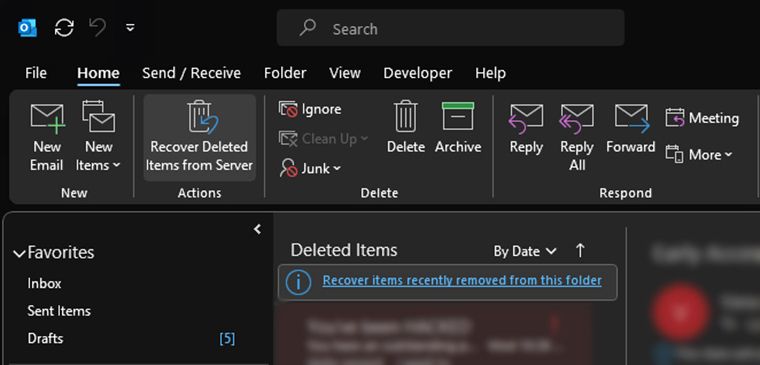
- In the Actions section, select Recover Deleted Items from Server.
- Select the deleted emails you want to recover. If you want to recover all deleted emails, you can click Select All in the bottom left.
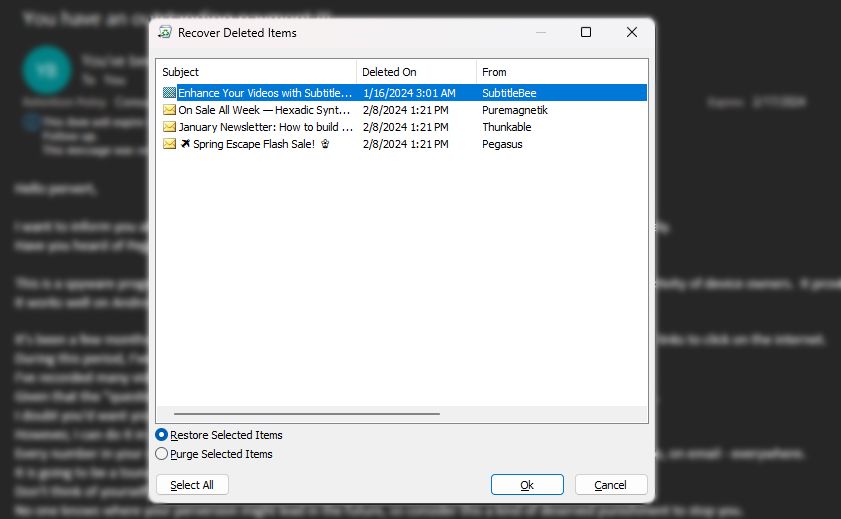
- Make sure that the Restore Selected Items radio is checked, and then click OK.


The recovered email will return to your Deleted Items folder. You can then move it back to your inbox by following the steps in the previous section.
Deleting emails is a hassle when there are too many to delete. The methods we discussed here make the task easier and less time-consuming. Additionally, if you accidentally deleted an item, now you know how to quickly recover it, even if it’s permanently deleted.