
How to Get Started With Notion
Notion is a popular productivity tool, but it can be daunting at first. The app does a lot of different things and uses terminology you may not be familiar with. Take it slowly with this step-by-step guide.
What Is Notion?
Notion is a note-taker, but it’s also a task management app, a project tracker, and a home for your galleries. You can even use it to host a website! It’s easy to feel overwhelmed by Notion because it’s quite different from other apps, and it packs a lot into its interface.
You can use Notion as a collaborative tool, to work on projects with teammates or share task lists. However, it’s best not to run before you can walk. By learning the fundamental concepts, and practicing how to use Notion for your personal activities first, you’ll be able to use it more effectively in a work setting.
Starting Notion for the First Time
When you first start Notion, it will display a splash screen prompting you to set it up:

It doesn’t matter too much which option you select, but I recommend you select For personal use for your first time. Then press Continue.
The next screen asks “What’s on your mind?” and you can select any of the available features. Notion will attempt to personalize your experience based on your selection. Again, I recommend you skip this by selecting nothing and pressing either Continue or Skip for now.

Create Your First Notion Page
Pages are central to everything you’ll do with Notion, whether you’re managing project status or commenting on a colleague’s design.
- In the sidebar, underneath a few sample pages (Getting Started, Monthly Budget), click the Add a page option.
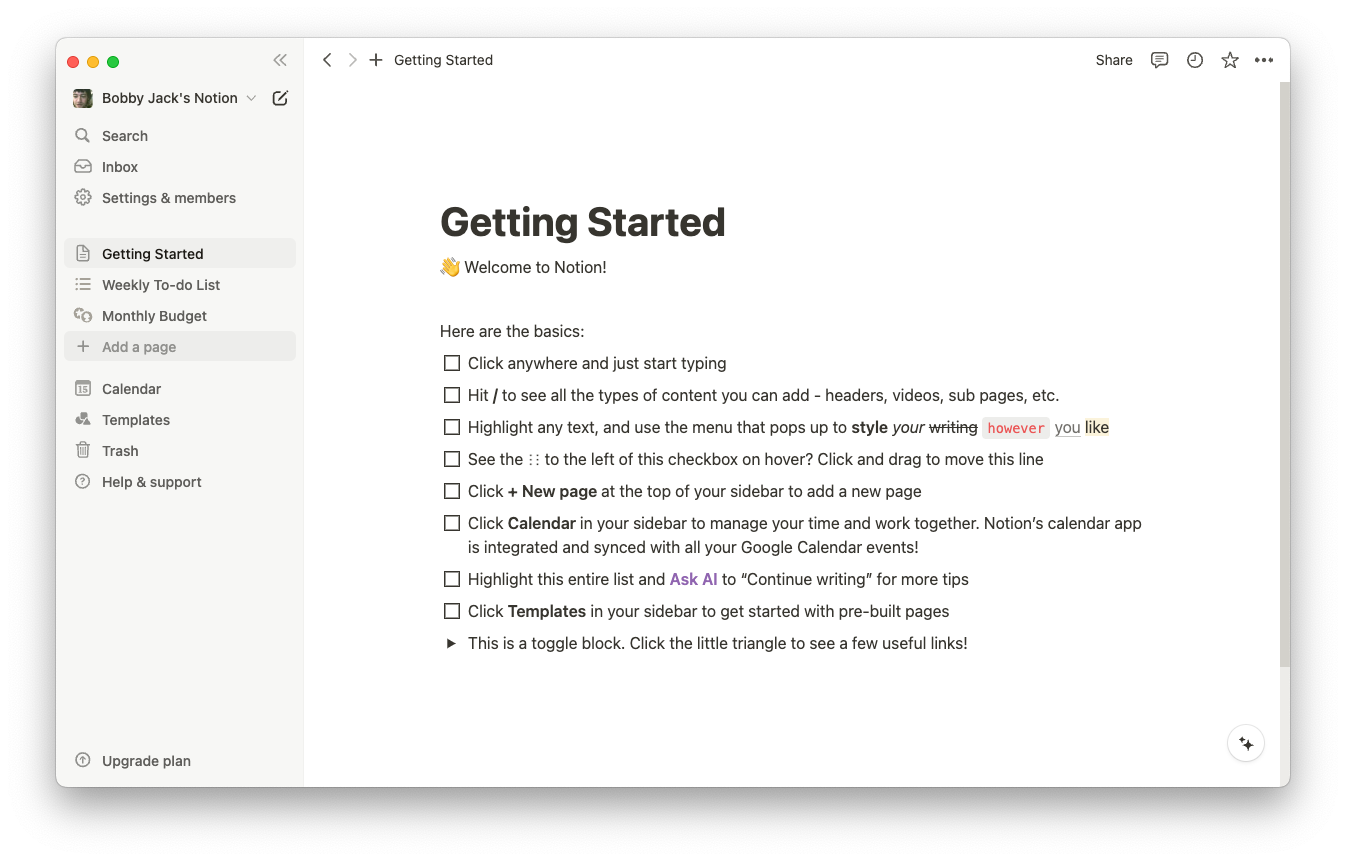
- Replace the “Untitled” text with a name for your page. This can be anything you want and you can easily change it later.
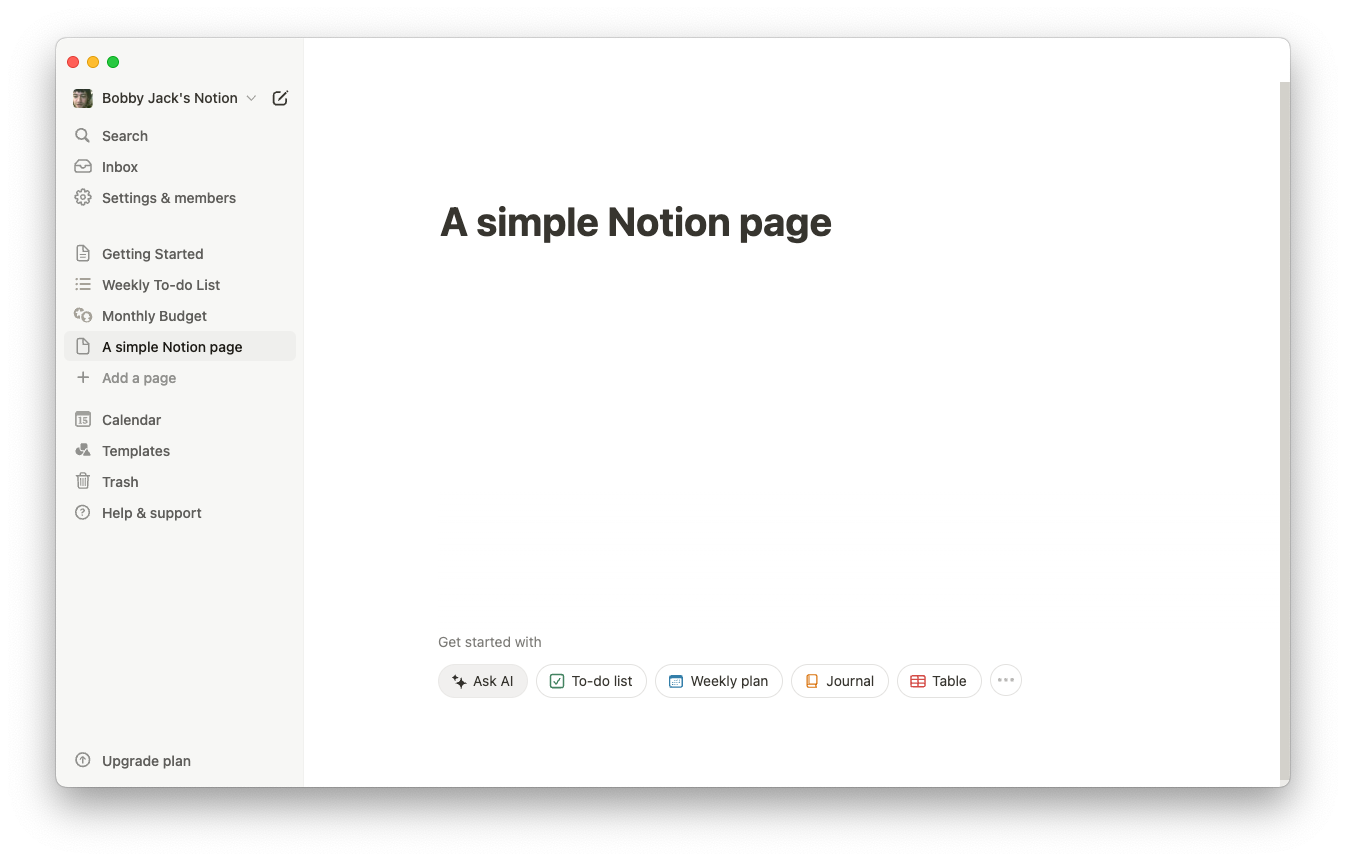
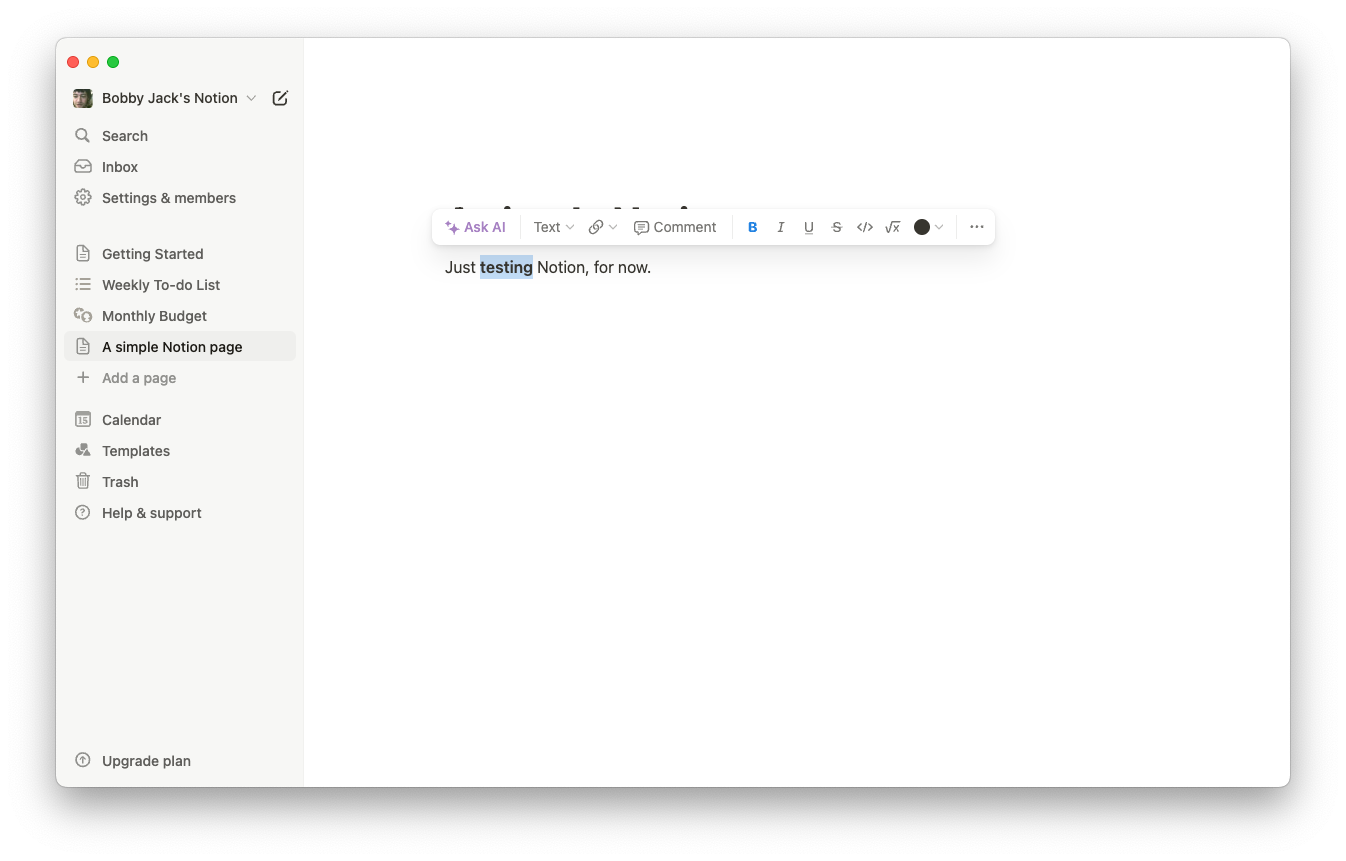
- Try typing some text in the main body of your page. Select some text and you’ll see a toolbar that lets you apply various formatting.


Adding Content to a Page
Apart from any text you type, Notion lets you add more advanced content that it calls “blocks.”
- On an empty line, type a single /. This brings up a menu with many different types of blocks you can add.
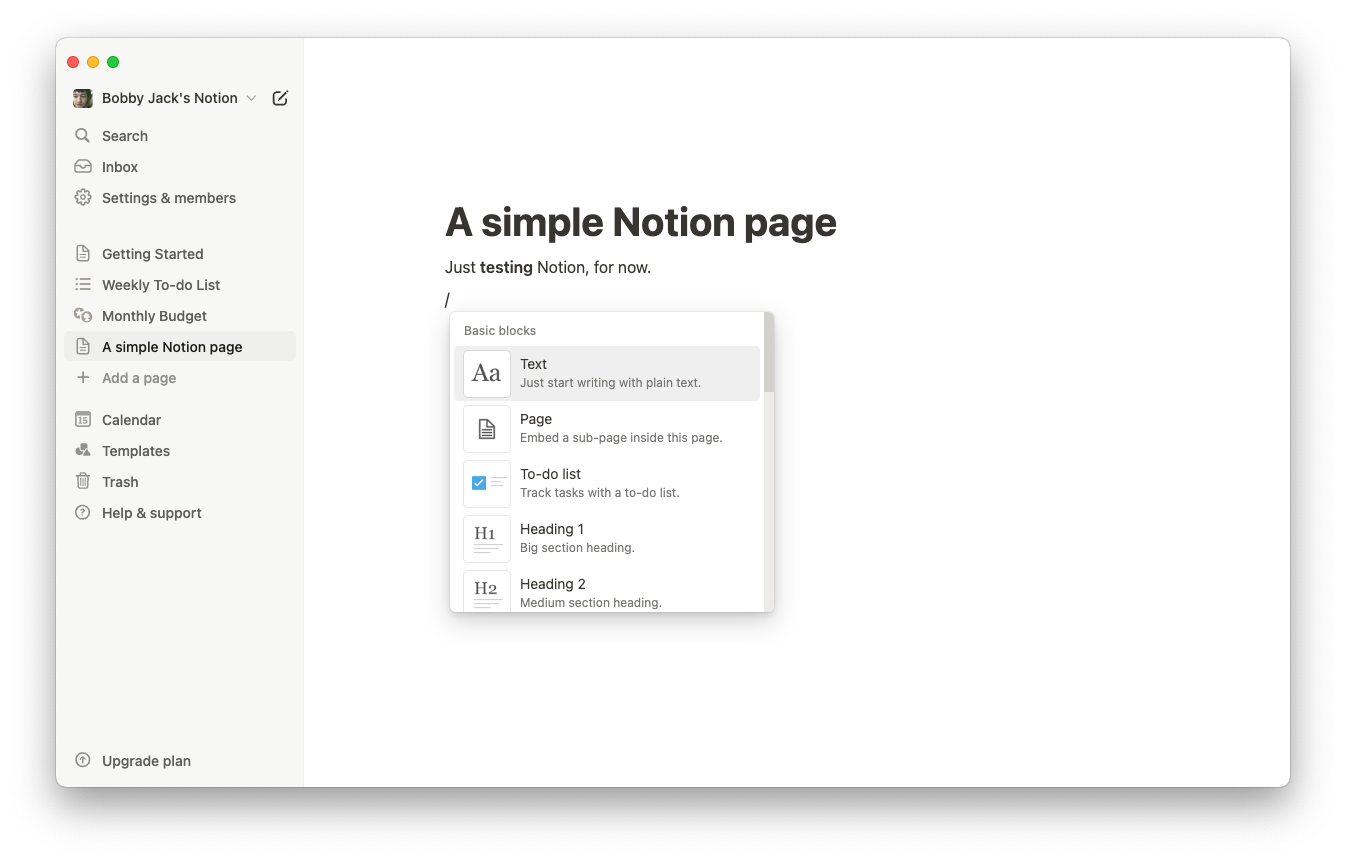
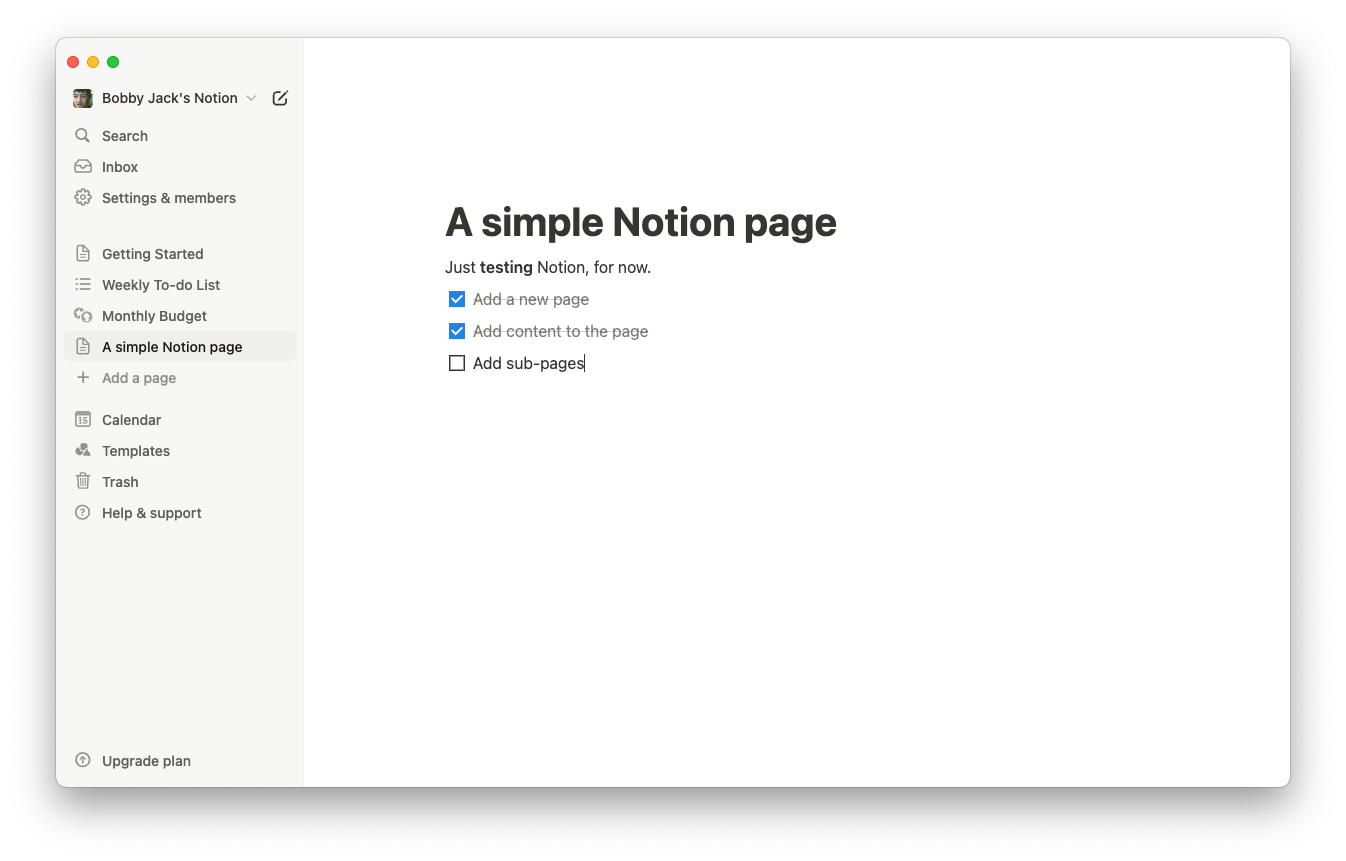
- Type “to-do”, then add the “To-do list” block to your page. You can add individual tasks to this list and click them to mark them as completed.


Adding More Pages
You can add a new top-level page using the previous method, but you can also add a sub-page to an existing page. For large projects, you can use a sophisticated hierarchy to organize your thoughts.
- On an empty line, type a single /.
- From the Basic blocks, select Page.
- Give your sub-page a name and fill it out as you require.
You can also create a sub-page from the sidebar by hovering a page name and clicking the
+
icon (
Add a page inside
).
Your new page will not show in the sidebar by default. To confirm you’ve created it, simply click the page icon to the left of its parent page. This will expand the parent page, displaying its sub-pages.
Adding a sub-page will automatically add a link to it in the parent page:

Templates, Databases, and Other Features
Notion offers a large set of templates that you can use to create pages. Some of these have much more than basic text functionality, including meal planners, expense trackers, and lesson plans.
Start by clicking the Templates menu in the sidebar. This will open a template gallery from which you can search and select templates. Try the To-do list template and click Get template once you’ve found it.

This will create a new page from that template. Note how it is much more advanced than the To-do list block, with a table of data and two different views named Tasks and Board. This is what Notion calls a database.
A Notion database is simply a collection of pages with different views to show specific information from those pages. They are a powerful way of organizing and displaying your data, and you can even use formulas to replicate what you might otherwise use a spreadsheet for.
Databases are a Notion concept that sounds quite complicated, so it’s best to familiarize yourself with them via templates.
Notion uses the fundamental concepts of blocks, templates, and databases to provide much more functionality. From calendars to bug trackers and bookmark lists, there are many types of content you can use with Notion to manage large parts of your work and life.
Aside from these features, Notion can use AI to summarize or translate your pages. It also lets you set task reminders, embed a Spotify playlist, and much, much more.