

How to Improve Your LinkedIn Profile Using AI
Key Takeaways
- Improve your LinkedIn profile with AI-generated summaries and paragraphs using tools like ChatGPT.
- Utilize LinkedIn Premium to enhance your profile with AI features like improved summaries and headlines.
- Use Grammarly to check for spelling errors in your LinkedIn profile for better attention to detail.
Crafting an enticing summary or heading on your LinkedIn profile can be the key to grabbing the attention of potential employers. Generative artificial intelligence (AI) can help. Let’s walk through the features within the LinkedIn app, along with other programs you can use to improve your LinkedIn profile.
1 Stand Out to Employers With ChatGPT-Generated Summaries and Paragraphs
Your LinkedIn profile is what many employers will look for when they select candidates they’d like to interview, and you should make their decision as easy as possible. With AI, you can create better summaries and paragraphs to show why you might be a good fit for their company. ChatGPT can help you land a job on LinkedIn in multiple ways, including these.
How to Create Better Summaries for Your LinkedIn Profile With ChatGPT
First, let’s look at how you can create more effective summaries with ChatGPT:
- Navigate to the ChatGPT website and either sign into your account or create a new one.
- Type a brief for ChatGPT to follow. You should outline your industry experience, specialty areas, and anything else you might think is useful.
- Hit the Enter key and wait for the program to generate your response.
- When you have the response, copy and paste your text into Microsoft Word or Google Docs. Then, edit everything until you’re happy with the result.
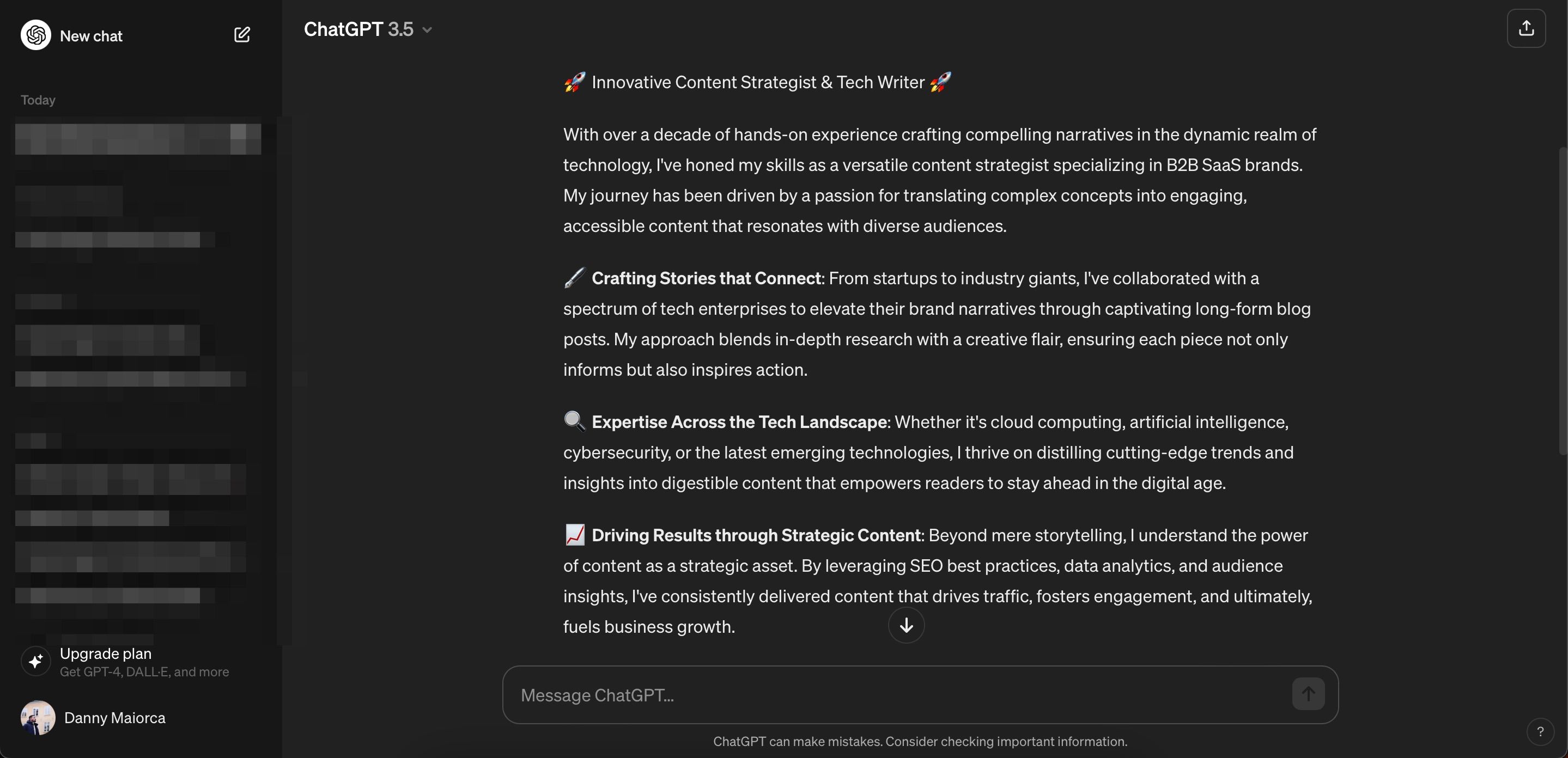

Prompt Example
: In US English, help me write an appealing LinkedIn profile summary. I have 10+ years of experience writing in the tech industry for publications and B2B SaaS brands, with a specialty in long-form blog posts.
How to Create Better Job Experience Explanations for Your LinkedIn Profile With ChatGPT
You can also use ChatGPT to effectively display your skills on LinkedIn by designing better summaries of your work experience. Follow these steps to do that:
- In ChatGPT, type your work experience and the main things you did there. It’s worth telling the chatbot to keep your summary short so that information is digestible for profile viewers.
- As you did with summarizing your profile, copy and paste your summary when you’re happy with it and edit further.


You can always experiment with different prompts to find the one that works best for you.
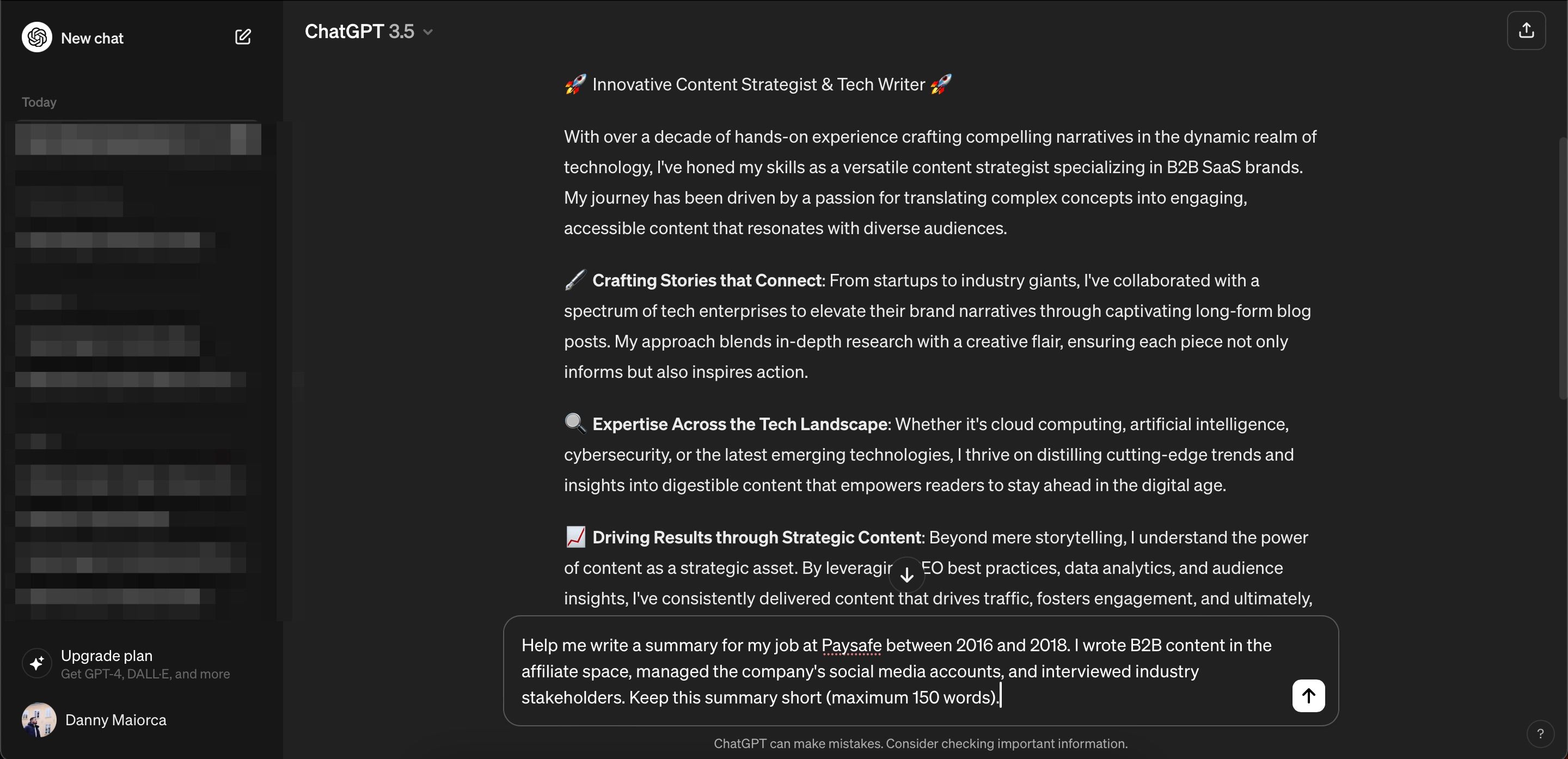
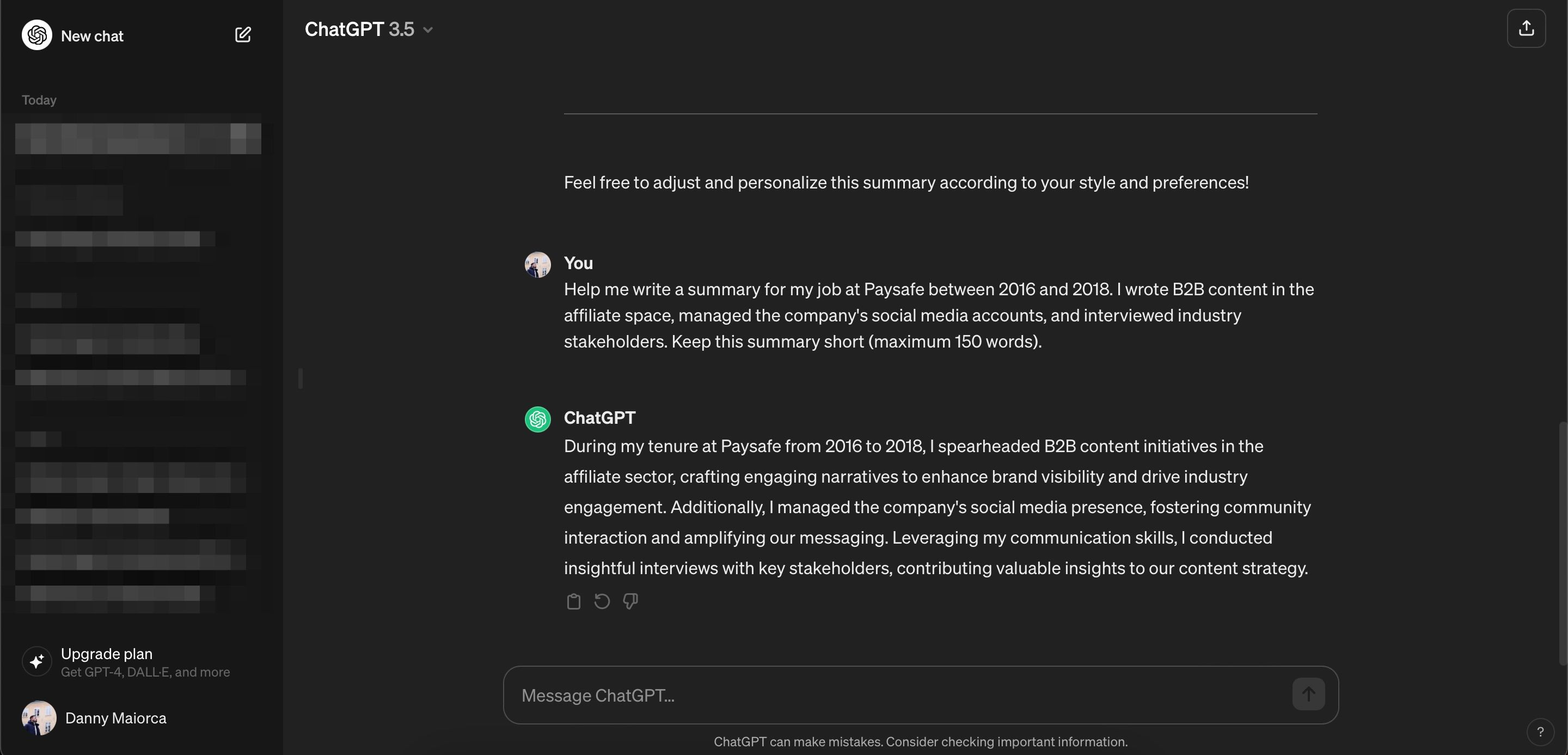
Prompt example
: Help me write a summary for my job at Paysafe between 2016 and 2018. I wrote B2B content in the affiliate space, managed the company’s social media accounts, and interviewed industry stakeholders. Keep this summary short (maximum 150 words).
2 Create a Better Profile Summary With LinkedIn AI
If you have LinkedIn Premium, you have several other options to improve your profile with AI. You can get a free trial of LinkedIn Premium if you want to try this and the other AI features we’ll discuss in this guide, so it’s worth experimenting with and deciding whether you can justify a paid subscription later.
Follow these steps to use the profile summary feature:
- Go to your LinkedIn profile. You can either do this by tapping your profile picture or entering your URL.
- Scroll down to the About section and tap the pencil icon.
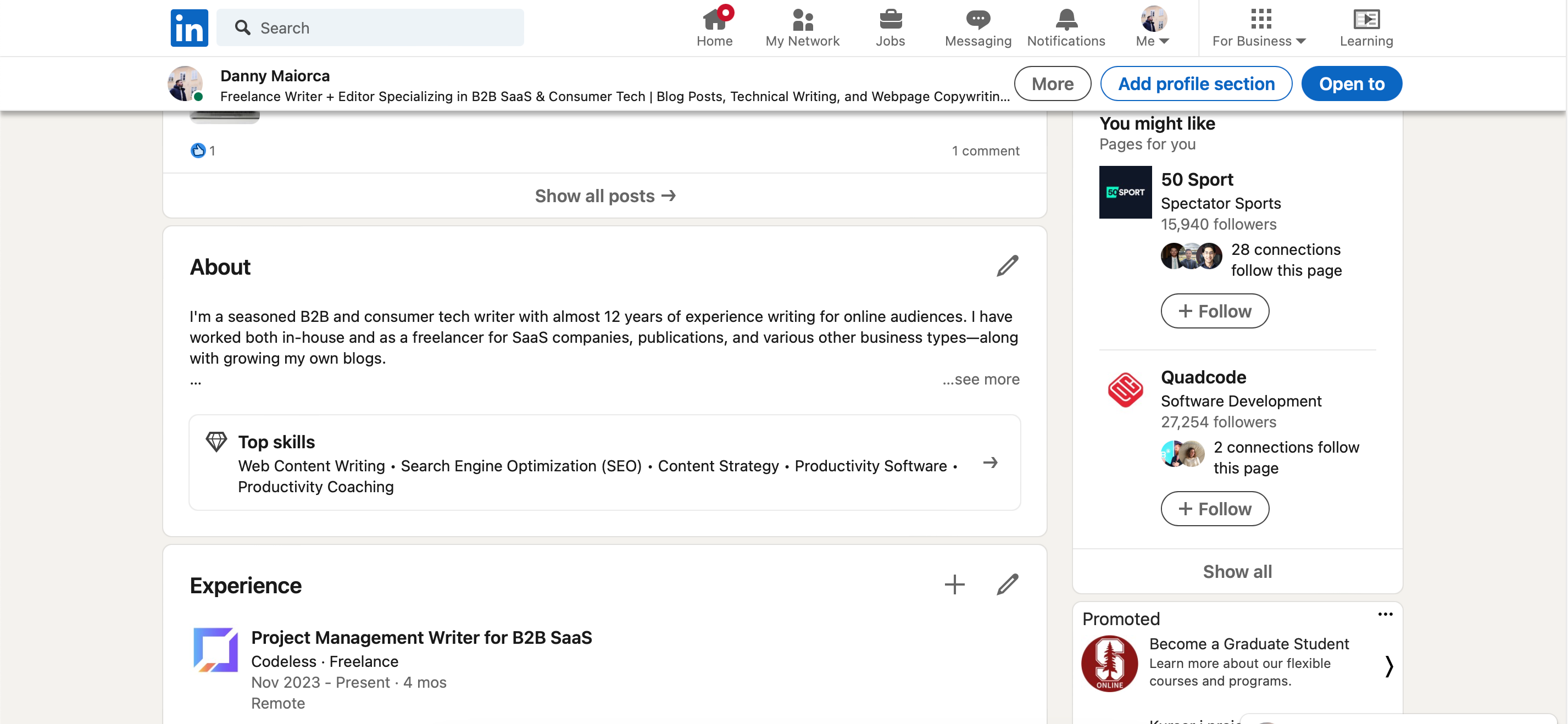
- When the Edit about window pops up, go to the summary text box. Beneath it, you’ll see a button called Write with AI; click on this.
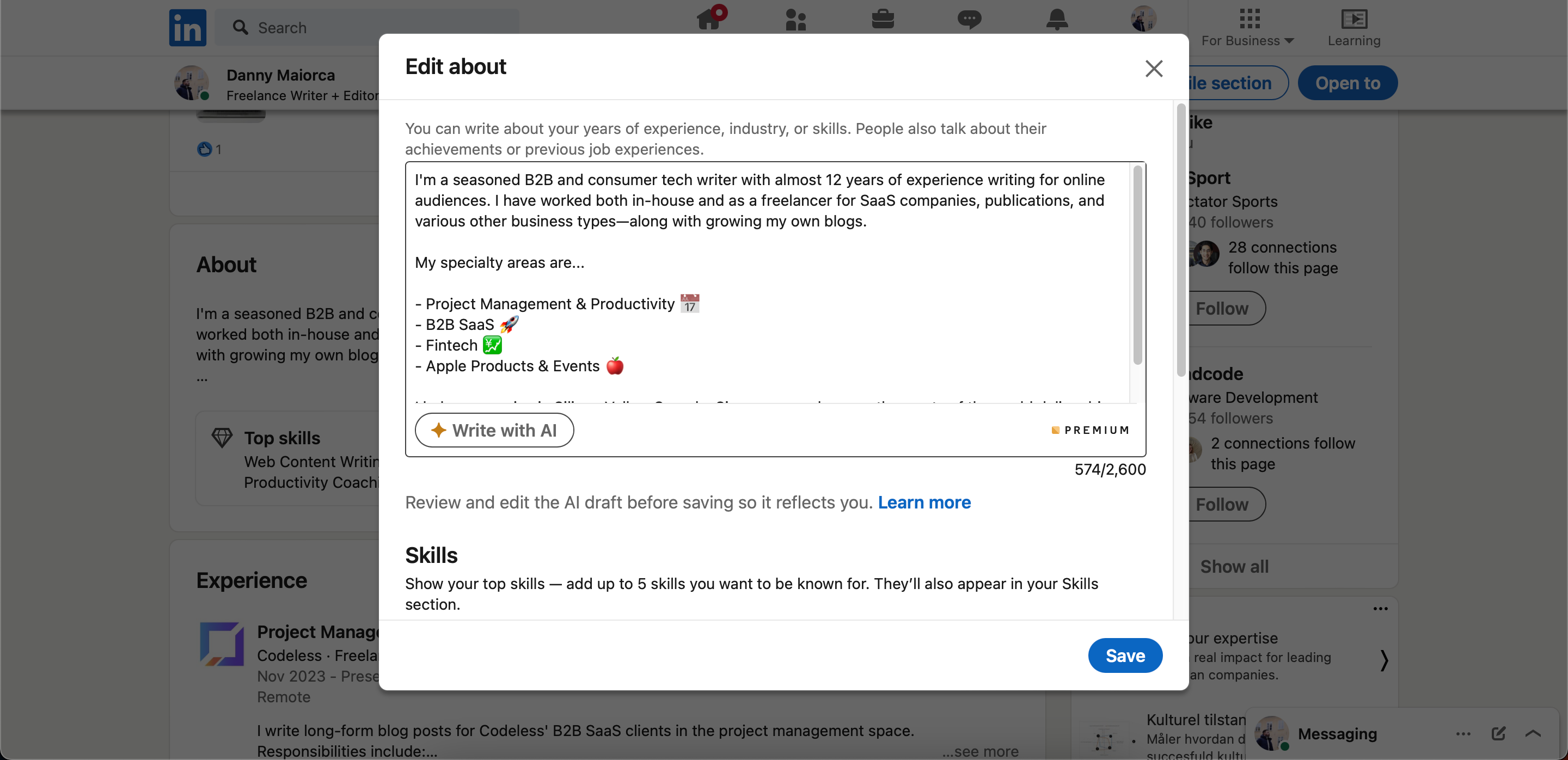
- Wait for LinkedIn to rewrite your profile summary. If you don’t like the result you’re given, select Revert to go back to the previous text.
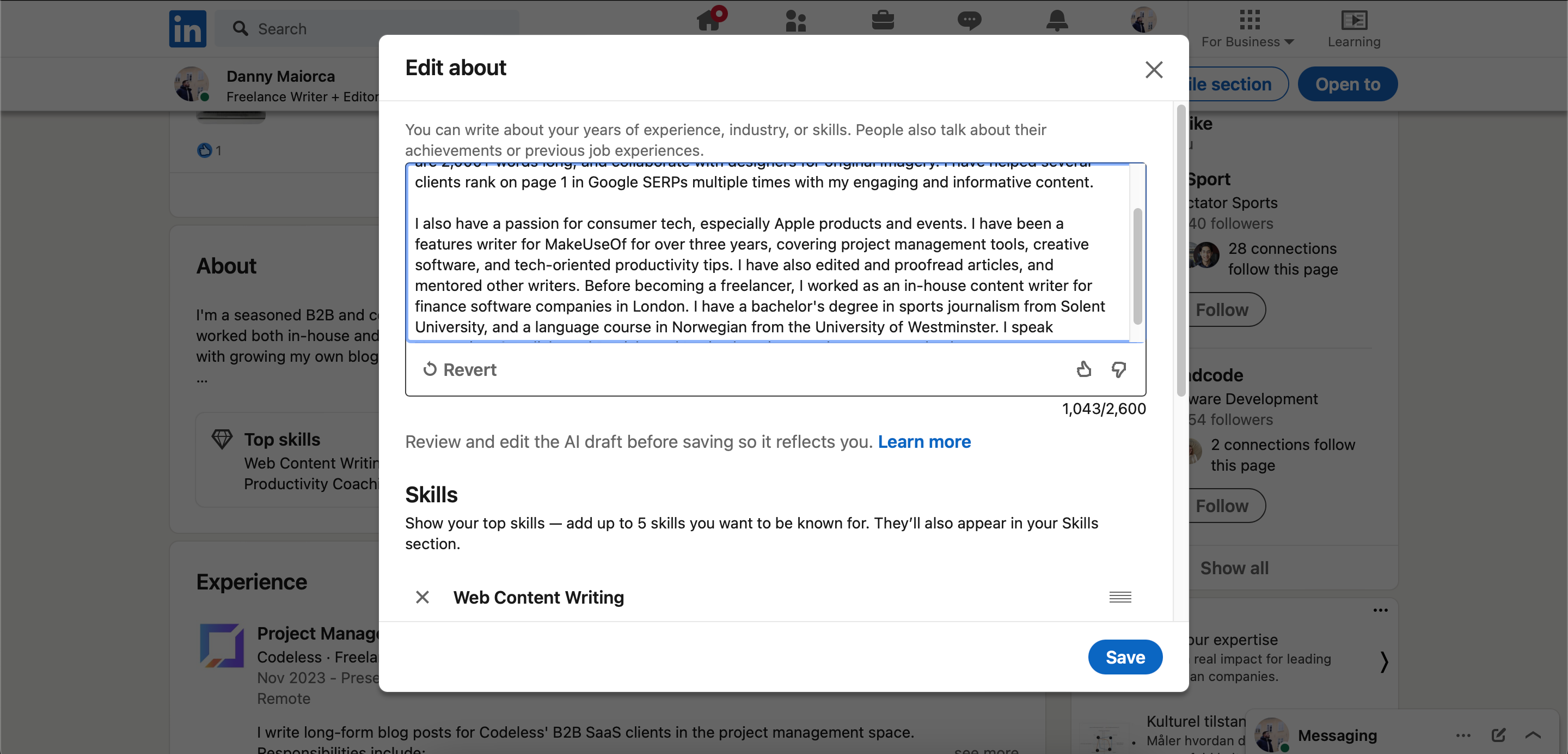
- Edit your LinkedIn summary before selecting Save when you’re done.


It’s a good idea to consider various factors before buying LinkedIn Premium fully. That way, you’ll know if you made the right decision or not.
3 Ask ChatGPT Which Essential Skills You Should List on Your Profile
You’ve probably accumulated a lot of skills during your career, but not all of these will be of significant interest to potential employers. Some might no longer relate directly to the roles you’re applying for, and others could have become outdated due to industry changes.
To help with prioritizing the skills you should list on your profile, consider using ChatGPT. Here are the steps you should follow to do that:
- Go to ChatGPT and ask the platform what you should list on your profile. Mention the role you’re applying for and give a brief description of your experience. The more specific you are, the better.
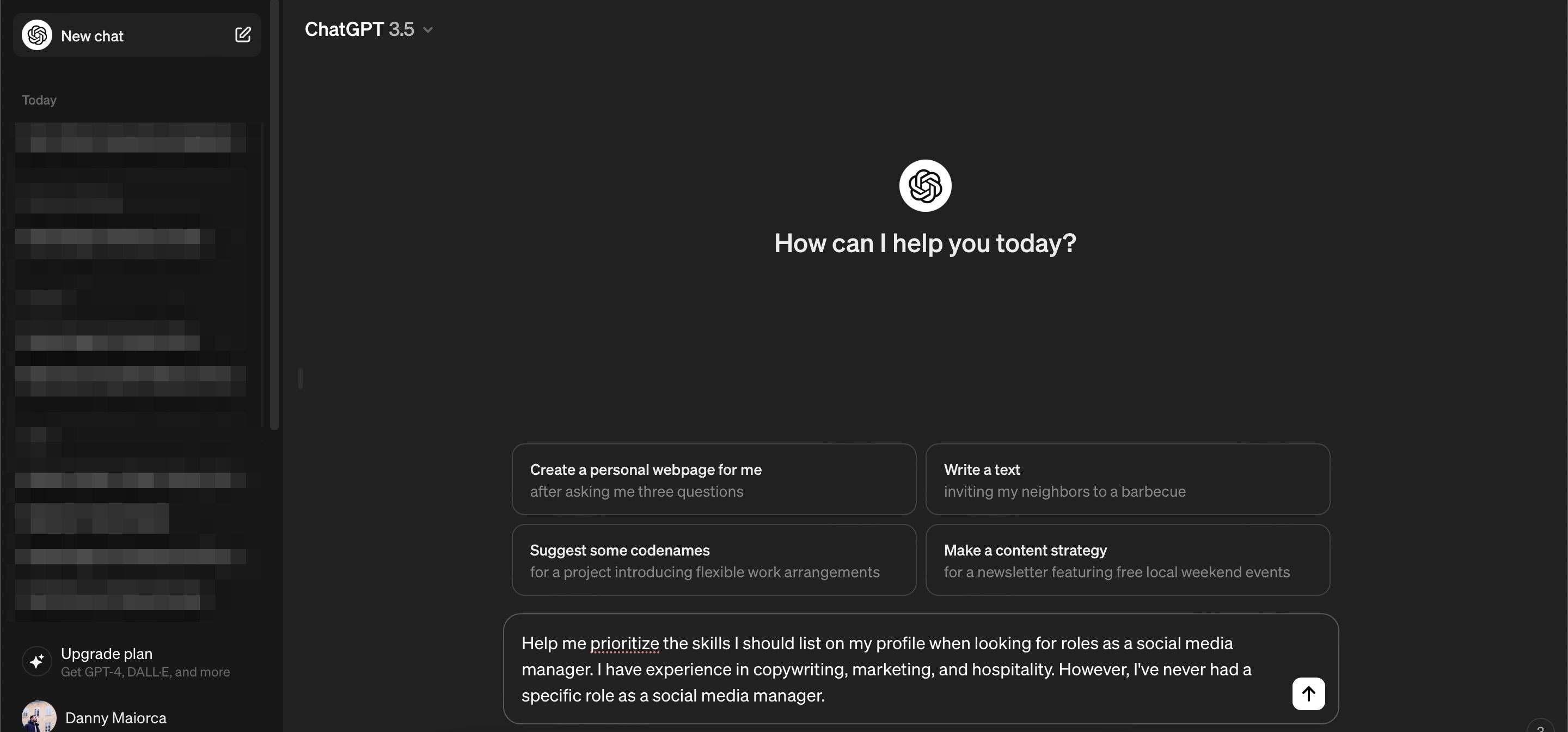
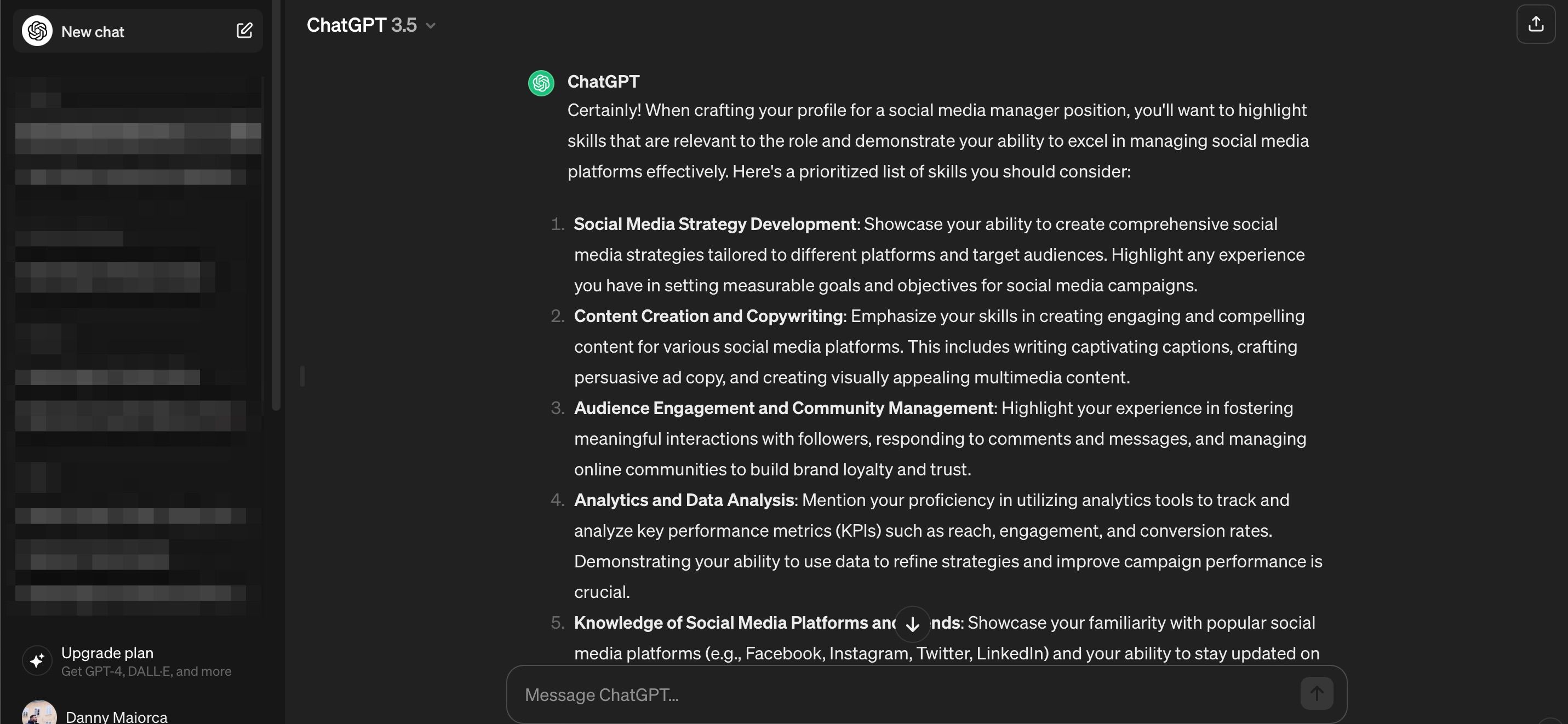
- ChatGPT will generate quite a lengthy response unless you cap how many words should be there.
- Take the skills that you have and elaborate on them. For those that you don’t have, you can use the response to determine where you should build your knowledge.


Prompt Example
: Help me prioritize the skills I should list on my profile when looking for roles as a social media manager. I have experience in copywriting, marketing, and hospitality. However, I’ve never had a specific role as a social media manager.
4 Write a Captivating Headline With LinkedIn Premium
Another handy LinkedIn Premium is that you can edit the headline that others see when they click on your profile. This is especially useful if you’re tired of simply having your current or most recent job role as your heading.
Using LinkedIn AI to write a new headline is very simple, and you can follow these steps to do so:
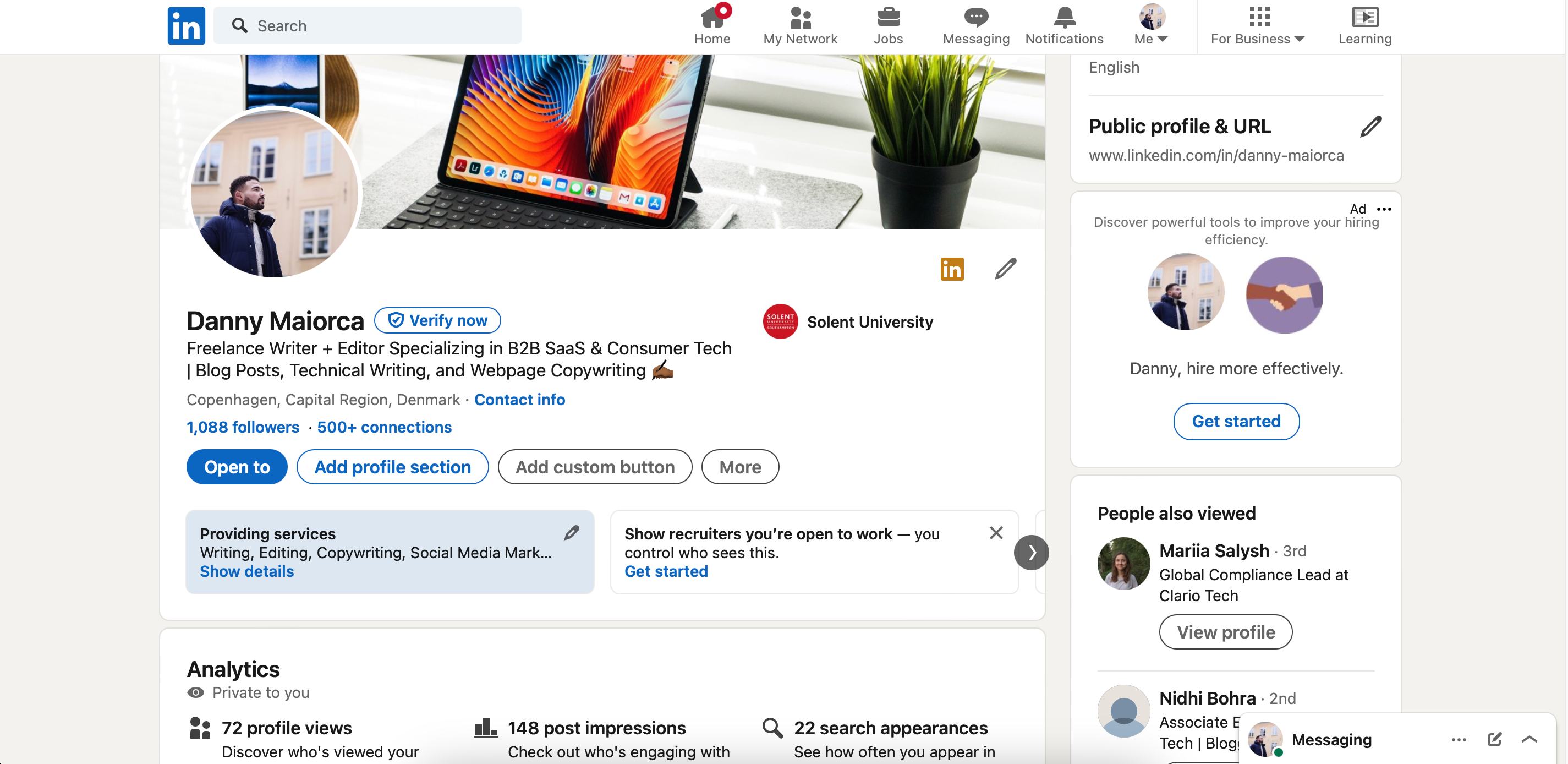
- Go to your LinkedIn profile.
- Tap the pencil icon next to the LinkedIn logo on your profile.
- Under Headline, select the Write with AI button.
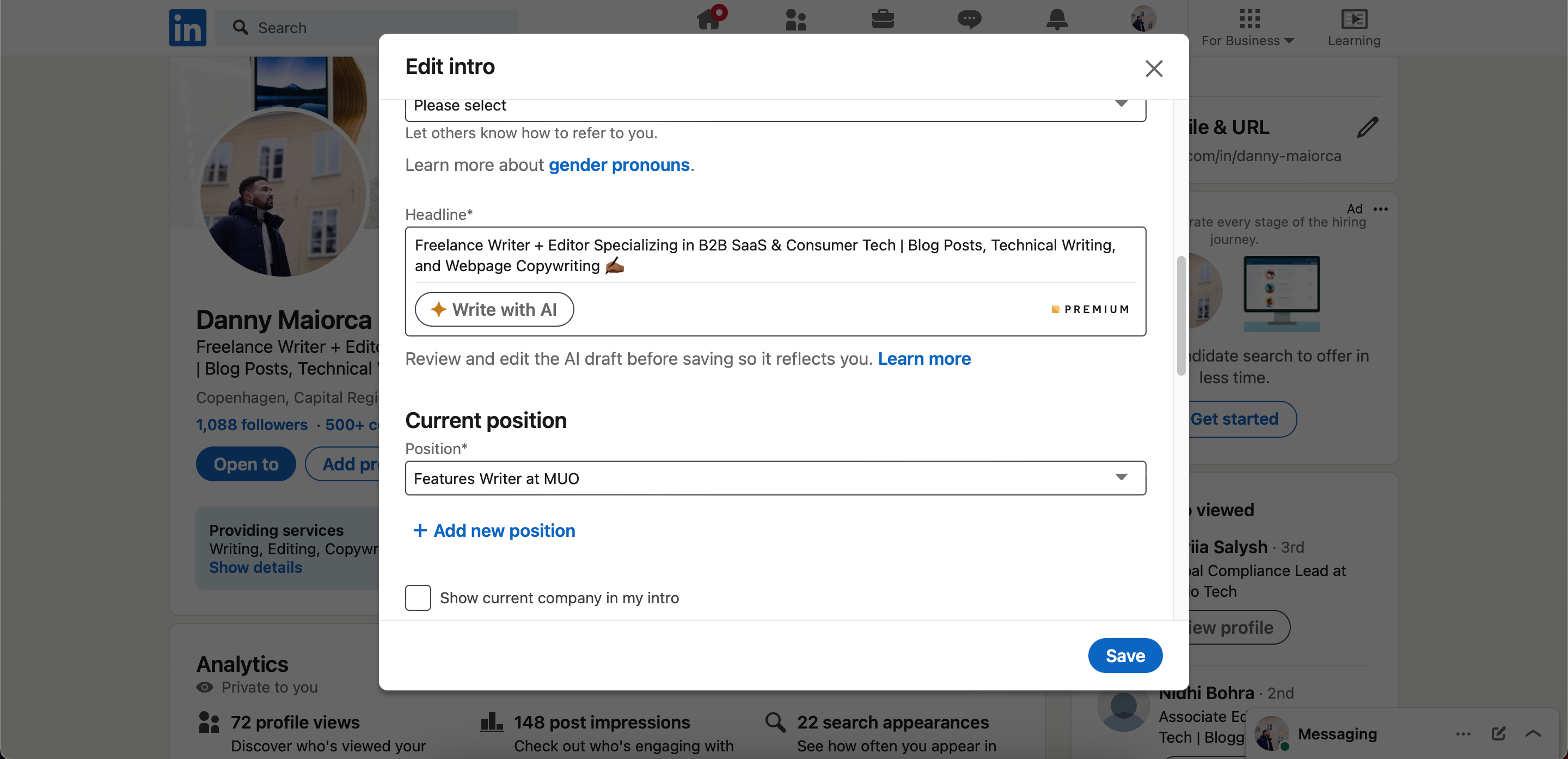
- Wait for LinkedIn to generate your new headline and edit it however you want.
- Press Save when you’re happy.
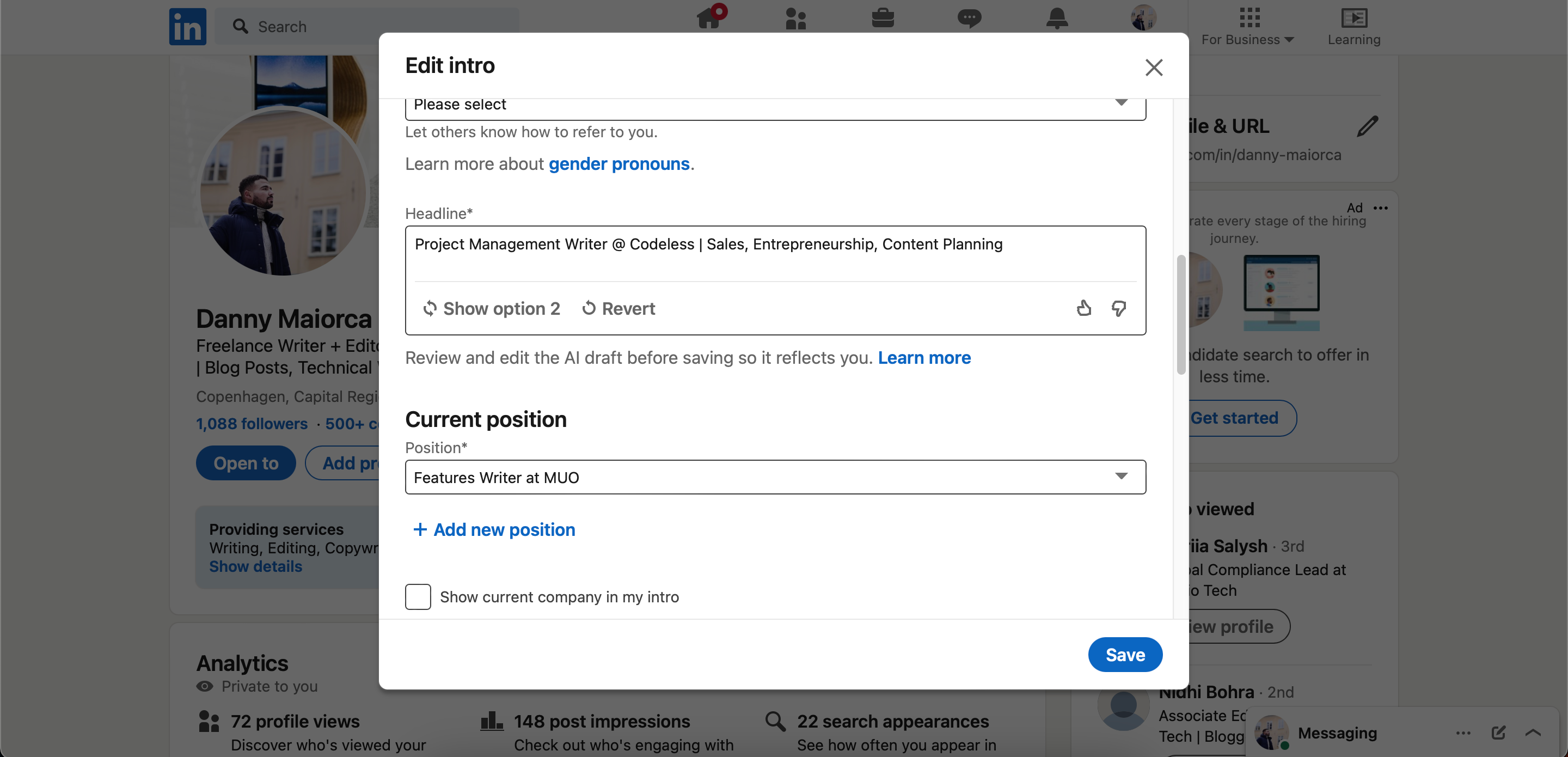


You can also choose from multiple options when picking your headline by selecting Show option [number]. If you don’t like the AI headline, select Revert to go back to your original text.
5 Use Grammarly to Remove Spelling Errors From Your Description and Job History
Regardless of your industry, most employers will want you to have good attention to detail. So, ensuring that your LinkedIn profile is error-free is an ideal starting point. Grammarly is an excellent tool for catching typos that you may otherwise have missed.
Grammarly has a free version, but it’s worth upgrading to the premium version for full access to its features. You can either use the Grammarly app or install it as a plugin. If you use Grammarly’s plugin, we recommend installing it on Chrome; the program can sometimes make Safari run more slowly.
How to Check for Errors With Grammarly’s App
To use Grammarly’s web or desktop app to check for spelling errors, follow these instructions.
- Download the Grammarly desktop app and sign into your account. Alternatively, go to the Grammarly web app.
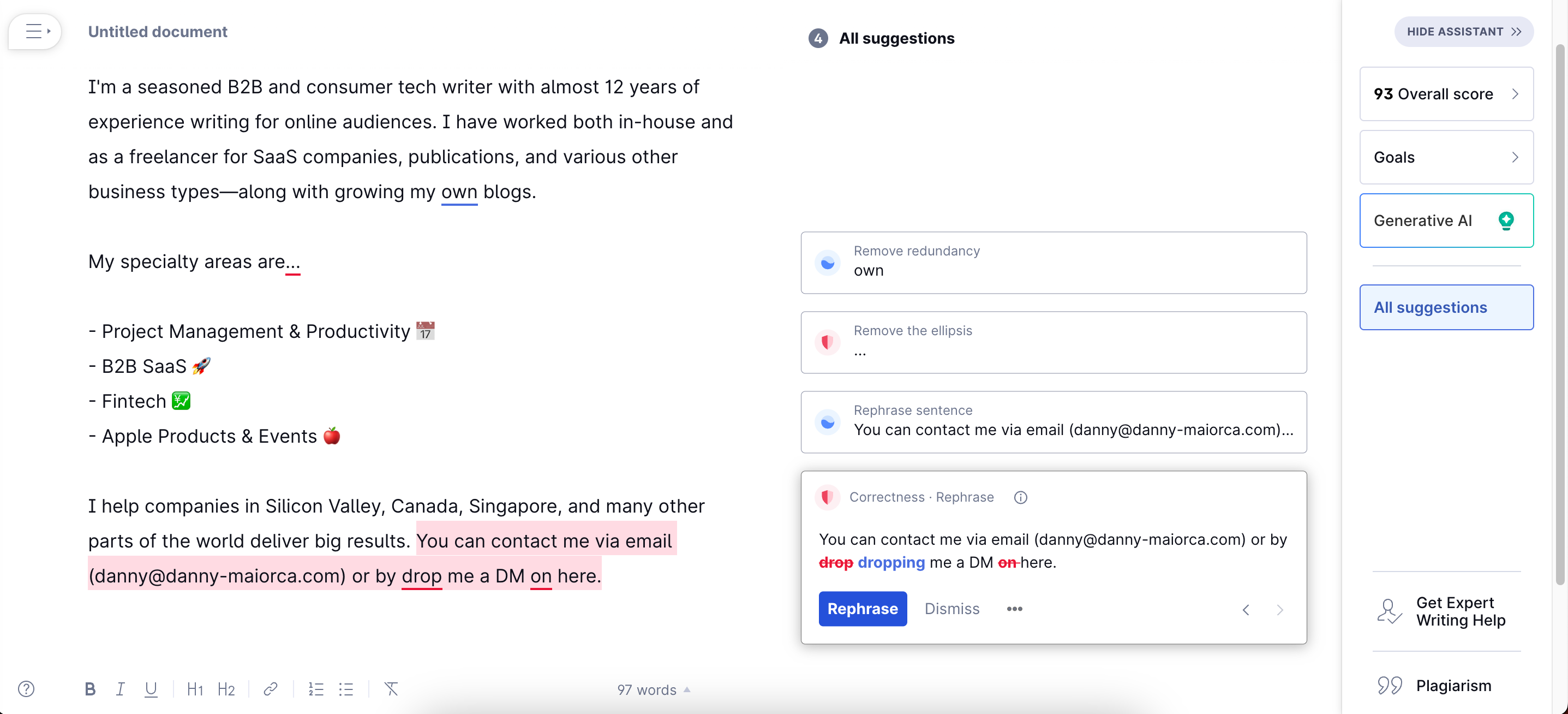
- Create a new document before copying and pasting the text you want to add to your LinkedIn profile.
- Assess the spelling errors that Grammarly finds and correct these. Then, copy and paste the text into your profile.

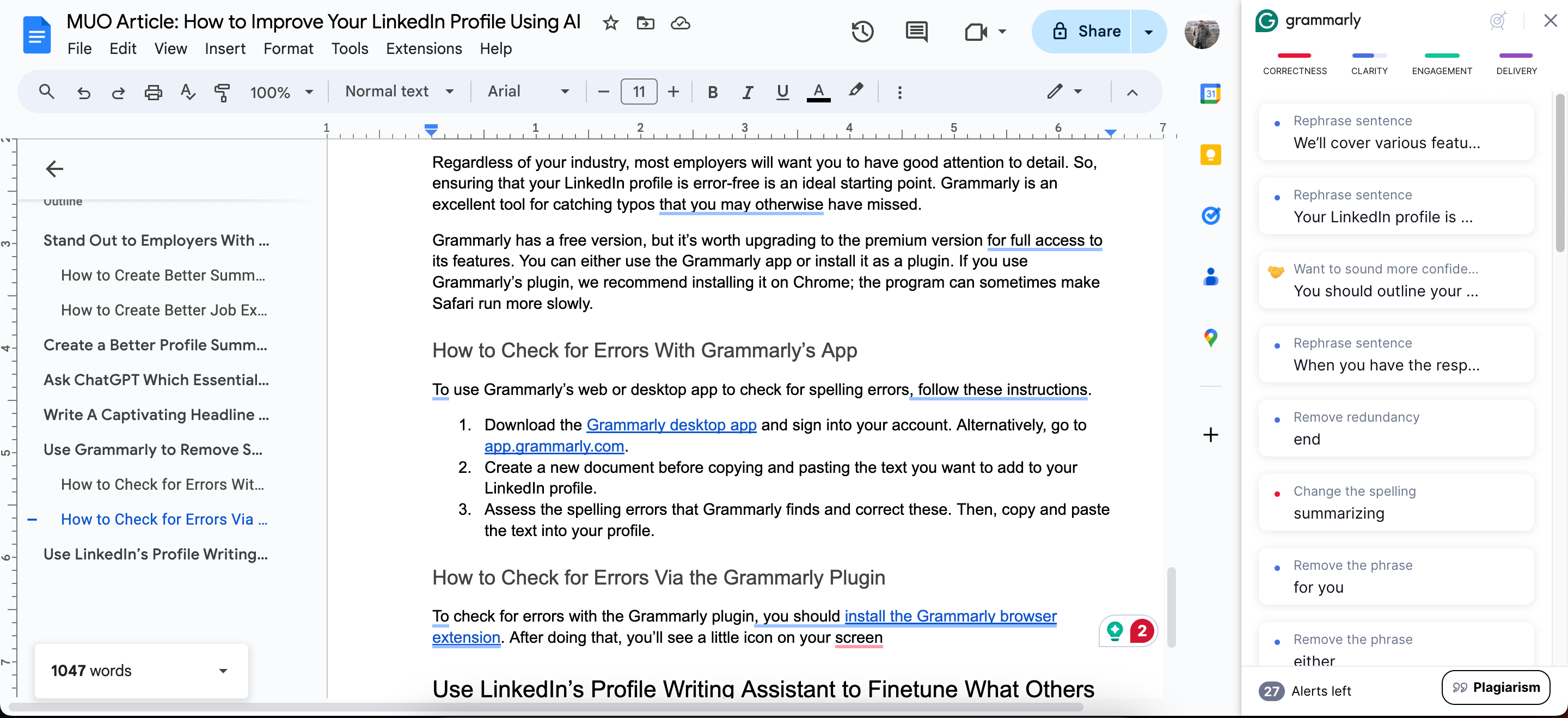
How to Check for Errors via the Grammarly Plugin
To check for errors with the Grammarly plugin:
- Install the Grammarly browser extension. After doing that, you’ll see a little icon on your screen; tap on this.
- Tap Correctness and go through the different errors you need to fix.
- Select any of the errors and click Grammarly’s suggestion to fix it.

6 Use LinkedIn’s Profile Writing Assistant to Finetune What Others See
The profile writing assistant is another tool that you can access to enhance your LinkedIn profile using AI. However, you’ll need to have a Premium subscription. This combines both the headline and summary writing tools we discussed earlier and lets you do them in one go.
Follow these steps:
- Tap on your profile picture in the top right-hand corner to expand the dropdown menu.
- Under Account, select Premium features.
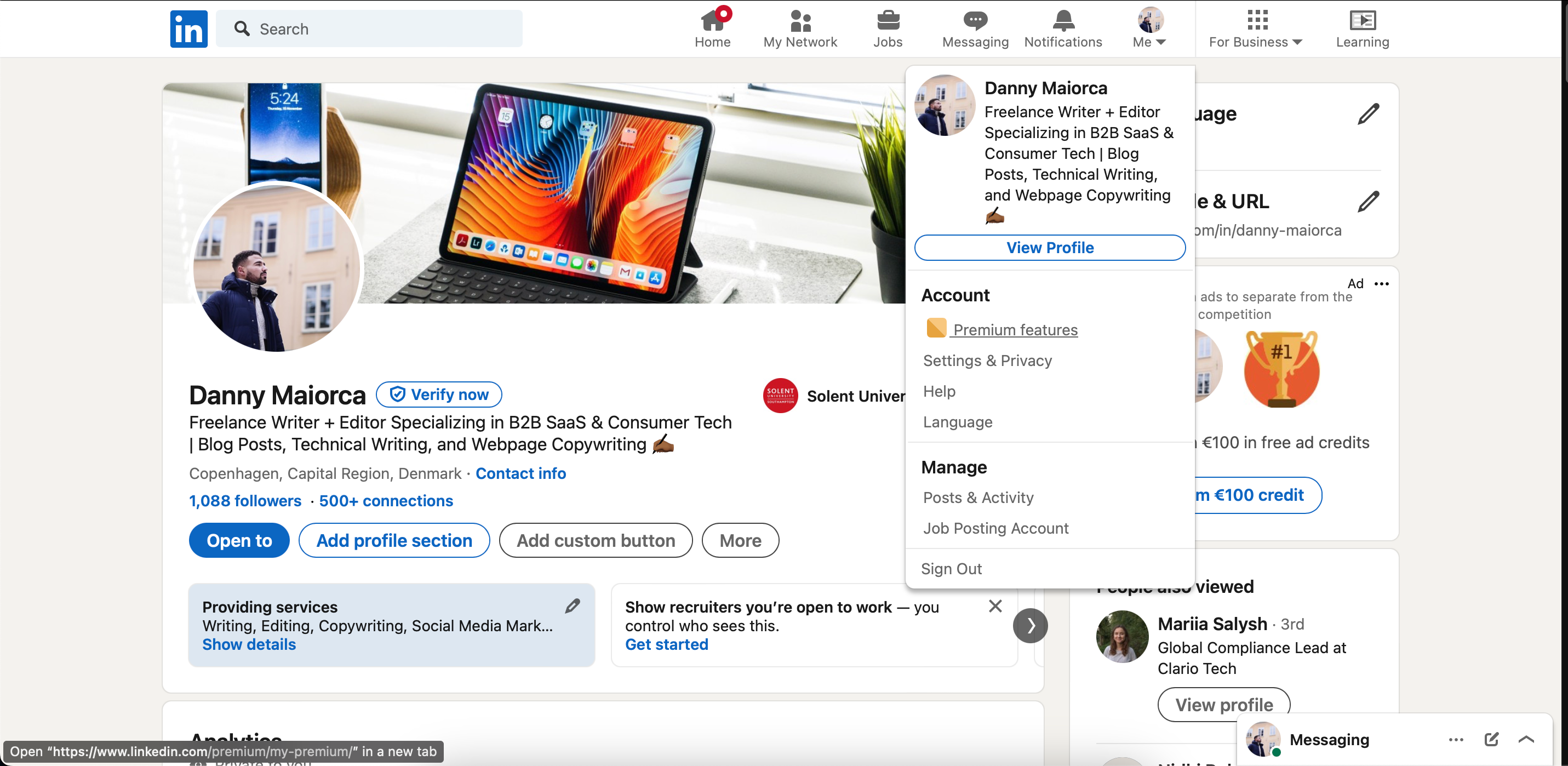
- Go to Profile writing assistant and select Enhance profile.
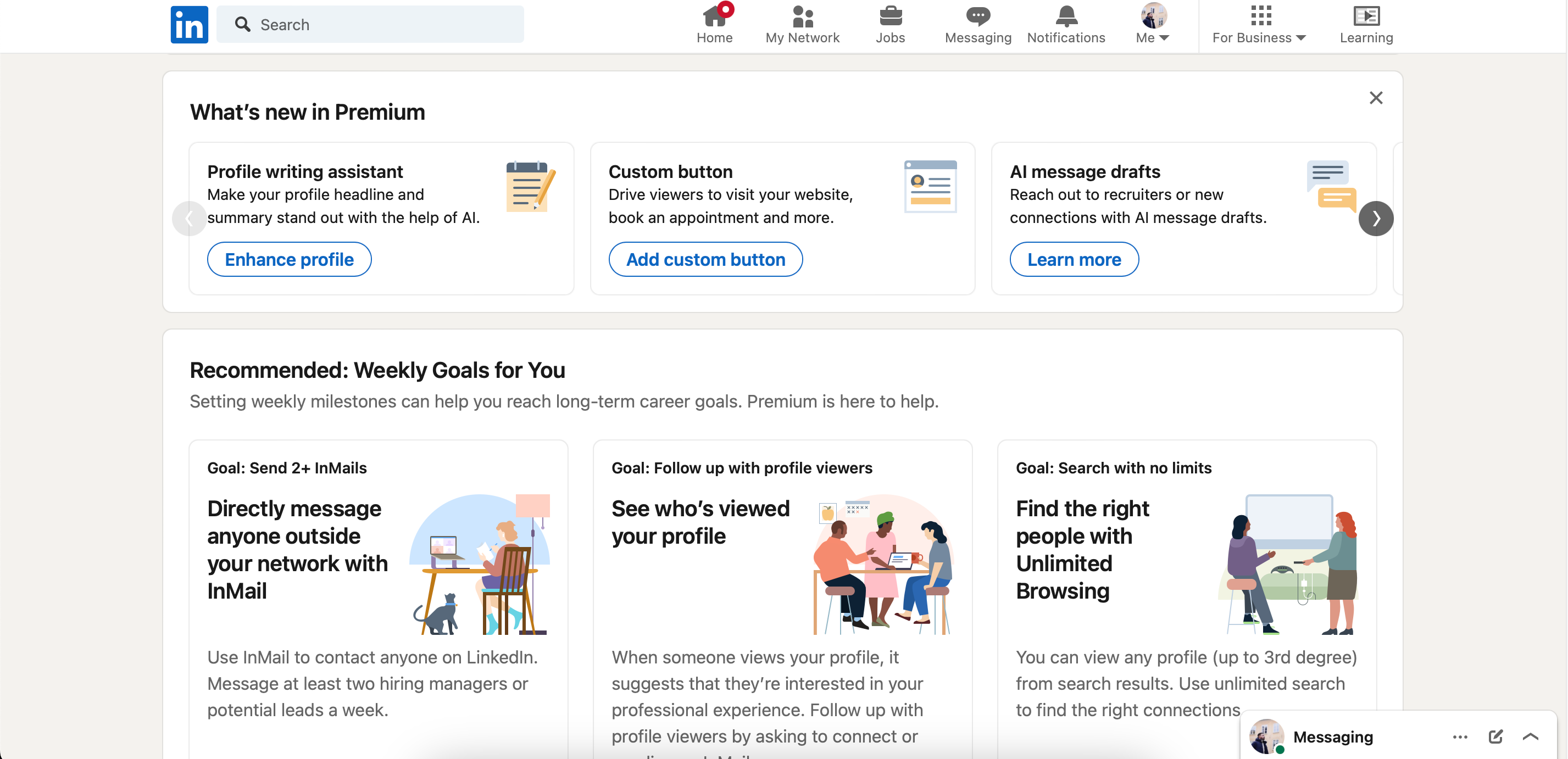
- Press Start when the pop-up window appears.
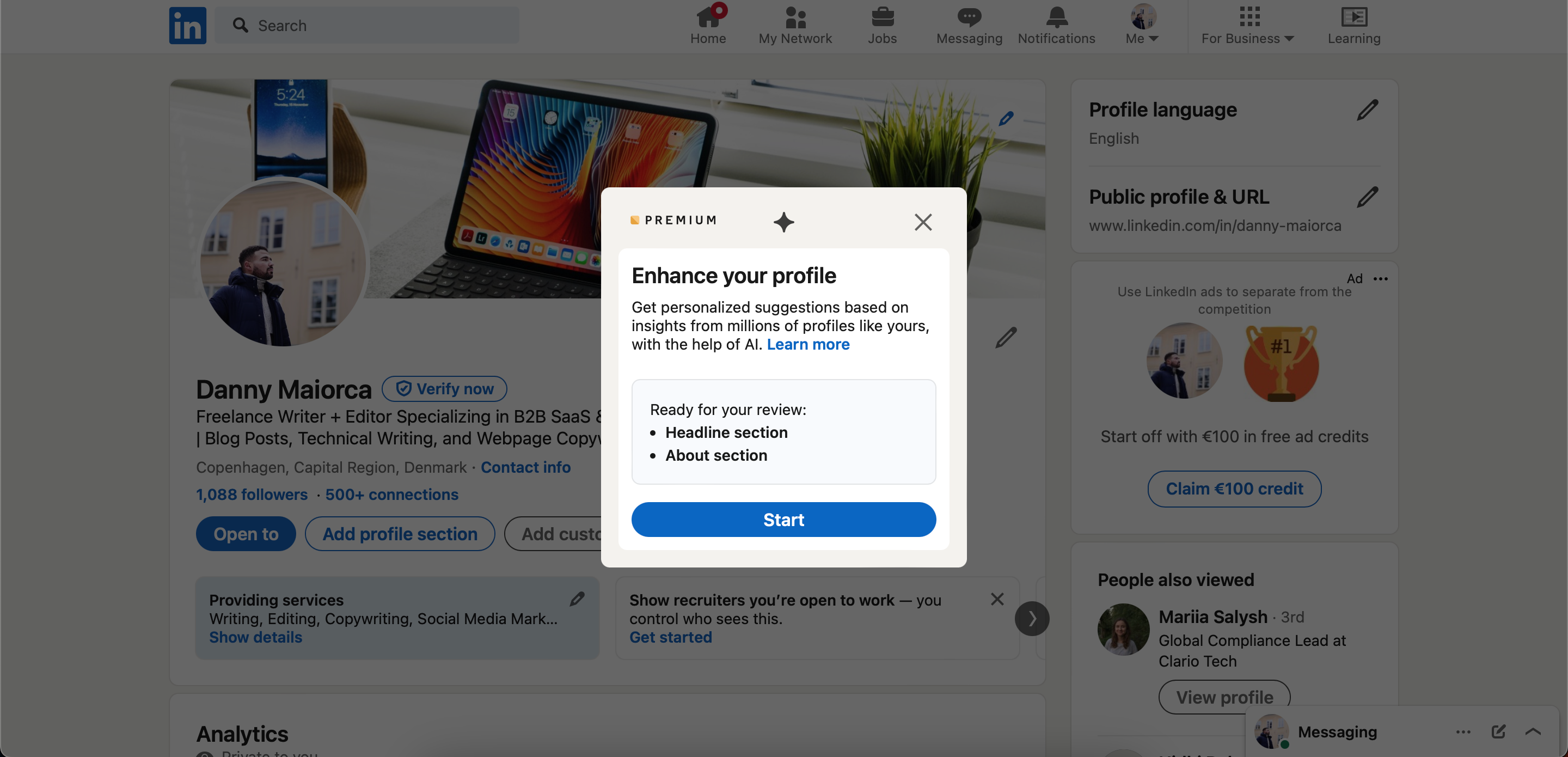
- Edit your headline when the AI-generated version shows up, before selecting Save and repeating the process for your profile.
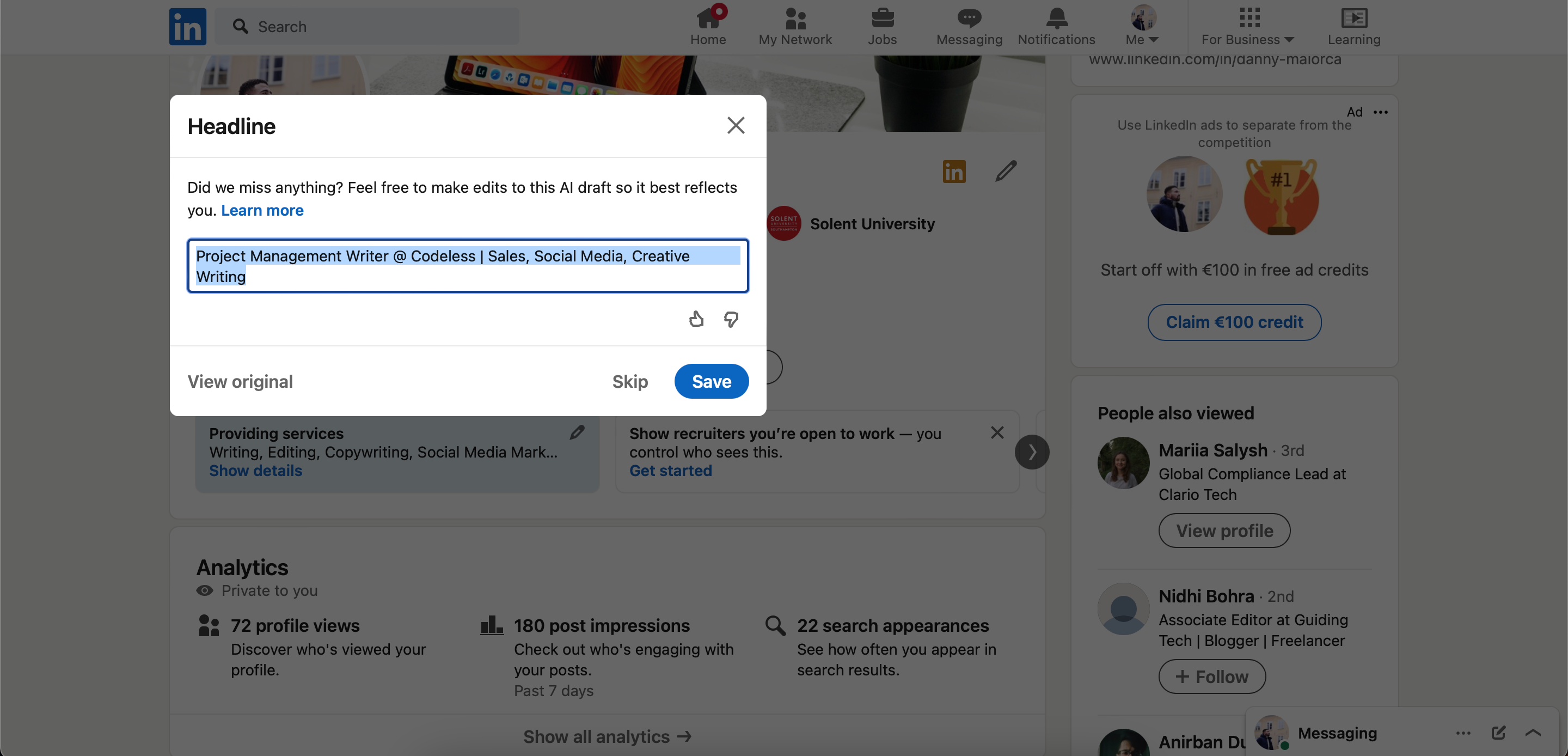


The process here is familiar, as it’s a combination of LinkedIn’s headline and about section writers. These AI tools can make your profile stand out to potential employers and increase your chances of landing your desired job. Remember to keep your profile updated and engaging, and never stop learning and improving your skills.