
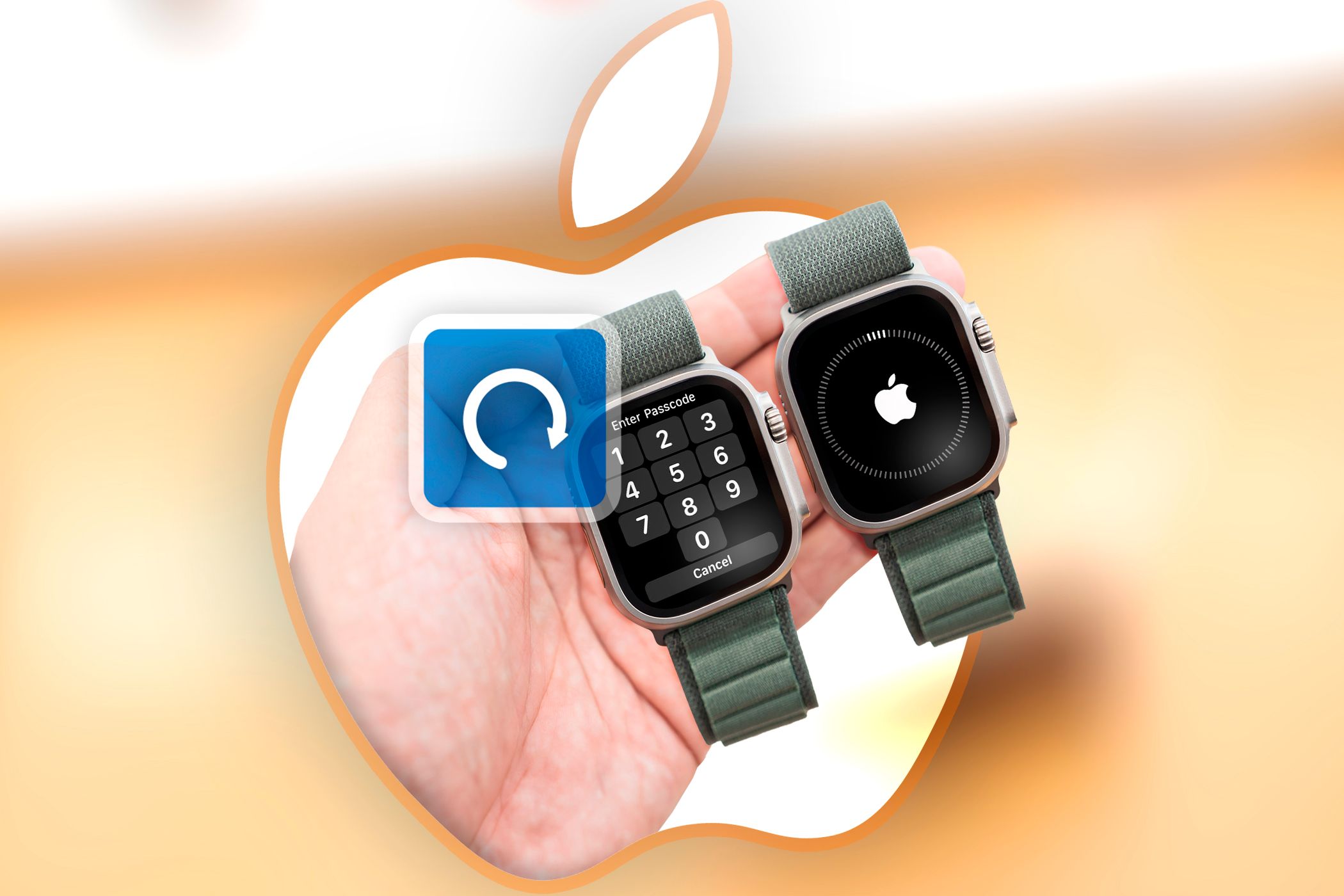
How to Reset Your Apple Watch and Its Passcode
You can easily reset your Apple Watch and its passcode through the Settings app on watchOS. But what if you forget your passcode or can’t unlock your Apple Watch? Well, here are your options.
Reset Your Apple Watch Using Your iPhone
If you forgot your Apple Watch passcode, the first way to reset it is by using your iPhone. Open the companion Watch app on your iPhone and head to the My Watch tab. Select General and scroll down to the very end of the page. At the bottom, choose Reset.
On the Reset page, select the first option: Erase Apple Watch Content and Settings. Because it’s impossible to undo this, you’ll have to confirm that option one more time to begin the reset process.
If you have a GPS + Cellular Apple Watch model, you’ll see a final dialog box where you can choose to keep or remove your cellular plan. If you plan to continue using the Apple Watch, you should keep your cellular plan.
As a final step, you’ll have to enter your Apple ID password to deactivate the Activation Lock security feature. Before it completely erases and resets, a full Apple Watch backup will automatically be saved on your iPhone. You’ll need to be patient as the entire process can take a lot of time, especially on older Apple Watch models.
If you forgot your watch’s passcode, the reset process with an iPhone is the same regardless of the Apple Watch model you have.
Factory Reset an Apple Watch Without an iPhone
If you don’t have your iPhone handy, you can still reset your Apple Watch by pressing these buttons:
- Press and hold the side button on your Apple Watch. You’ll see two options: Medical ID and Emergency Call.
- Now hold down the Digital Crown until you see Erase all content and settings.
- Tap Reset twice to confirm.
The watch will then begin the factory reset process. This method won’t make a new backup before wiping the Apple Watch, so the backup you see for restoration will be a few days old.
Keep your Apple Watch on its charger until you complete the process.
How to Restore Your Apple Watch
Now that you’ve wiped your Apple Watch, it’s time to restore it with backup. To start the process, bring your iPhone near the Apple Watch, then follow the steps:

- Your iPhone will display a dialog box that says, Use your iPhone to set up this Apple Watch.
- Tap Start Pairing > Continue.
- Align your iPhone’s camera with the animation on your Apple Watch. Hold your phone over the watch until you see a message saying, Your Apple Watch is Paired.
- Choose whether to Set Up as New Apple Watch or Restore from Backup.
- Agree to the Terms and Conditions.
- Create a passcode for your Apple Watch when prompted. Then, choose the settings you want for your Apple Watch.
Once you’ve completed these steps, the watch will play a sound to inform you it’s ready to use.
As you’ve seen by now, forgetting your Apple Watch passcode isn’t nearly as problematic as forgetting your iPhone’s passcode. As long as you have an iPhone handy, you can get your Apple Watch back up and running with just a bit of work.