
The Emoji Keyboard and More
Key Takeaways
- The easiest way to type emojis on your Mac is by using the built-in emoji picker.
- If you want to type emojis like you would on Discord or Slack in any app, you can use a third-party app like Rocket.
- For a vast library of emojis, check out Emojipedia, which has nearly every emoji in existence.
Entering emojis on a Mac isn’t as straightforward as on your iPhone since the physical keyboard doesn’t have a dedicated emoji key. But it’s still pretty easy once you know what to do. And you have multiple options. So, let’s take a look.
1. Use the Built-In Emoji Picker
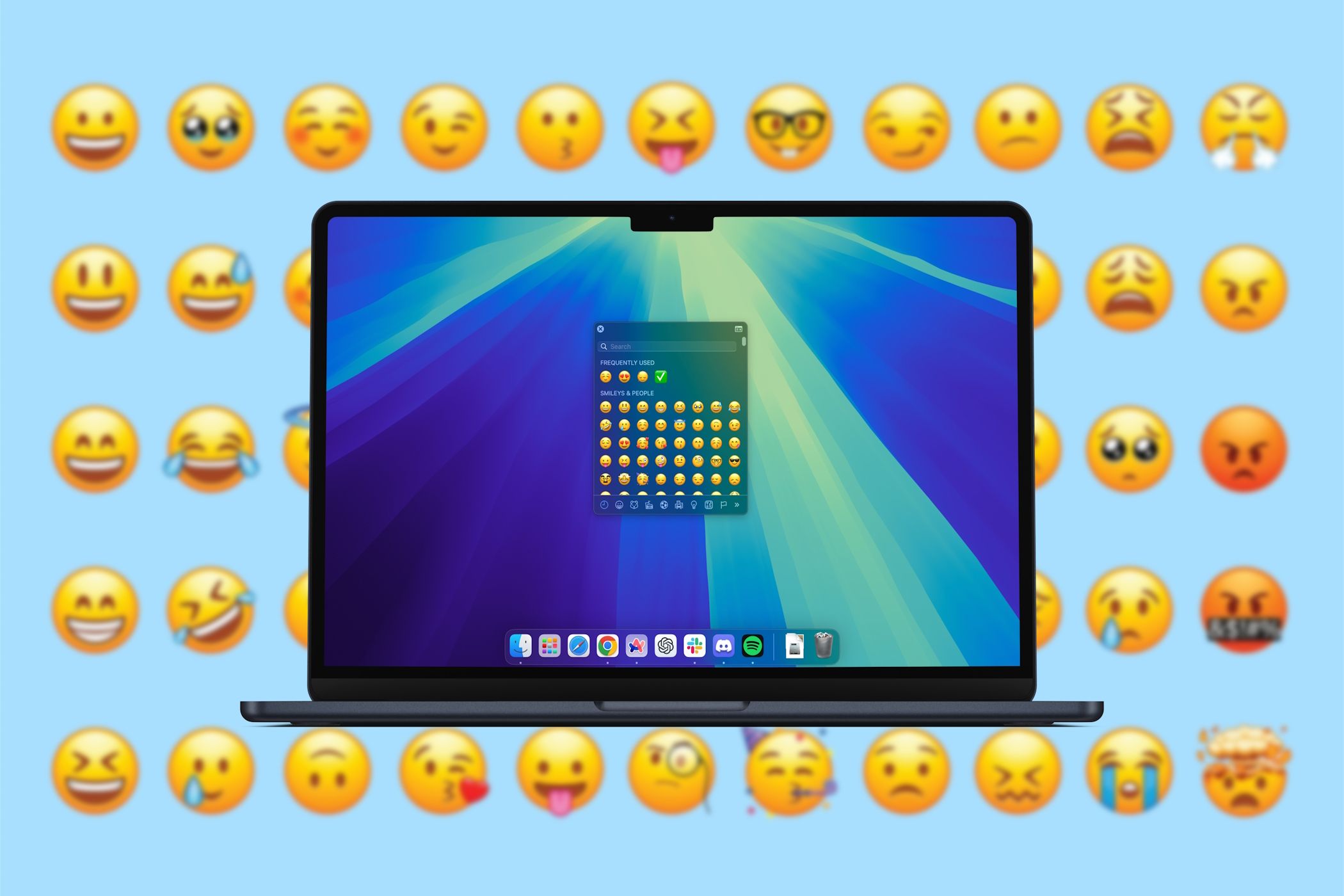
If you’ve been a longtime Mac user, you may know about the built-in emoji picker. When your cursor is active in a text field, just press and hold the Function (Fn)/Globe key, which will bring up the emoji picker, where you can select and type in any emoji of your choice.
All the emojis are sorted into categories, and you’ll find your frequently used section at the top. You can expand this section by clicking the icon at the top-right of the pop-up to view more categories and different symbols. This is the easiest method to insert and use emojis across multiple apps on your Mac.
If you’ve reassigned the Function (Fn)/Globe key to a different action, you can still open the emoji picker using the Cmd + Ctrl + Space keyboard shortcut.
To remap the Function (Fn)/Globe key back to opening the emoji picker, go to System Settings > Keyboard and set the Press Globe key to option to Show Emojis & Symbols. Now, pressing the Fn key will automatically bring up the emoji picker, allowing you to insert emojis easily.

If you’d rather have an on-screen shortcut instead of using a dedicated key, follow these steps:
- Go to System Settings > Keyboard.
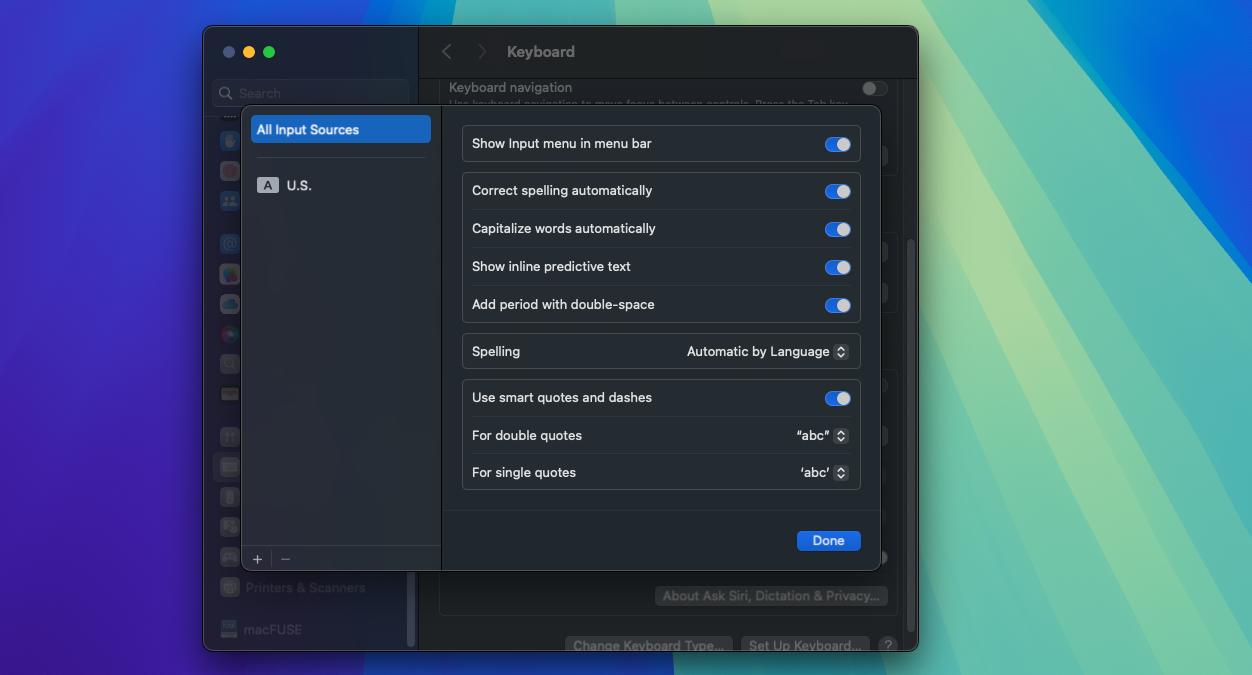
- Click the Edit button next to Input Sources under Text Input.
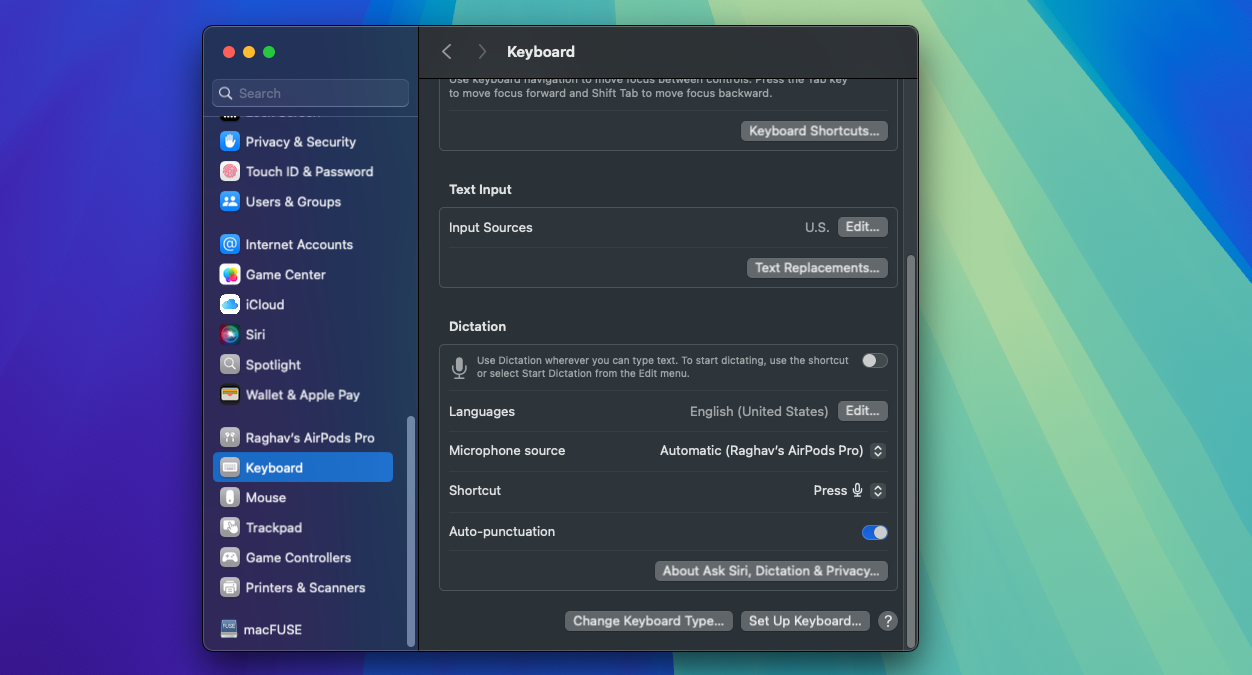
- Enable the Show Input menu in menu bar option.
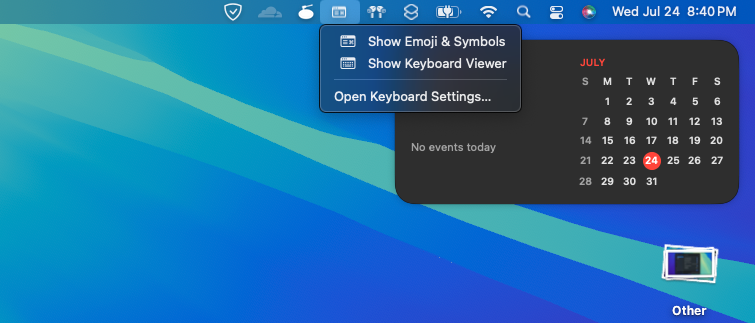
- Now, you can bring up the emoji picker by clicking the input menu icon in the menu bar and choosing Show Emojis & Symbols.


While this is a convenient way to type emojis, you may want to explore other methods that could be faster or offer more choices. So, let’s discuss some additional options.
2. Search on Emojipedia

For someone who didn’t grow up using emojis, Emojipedia is a lifesaver. As the name suggests, it’s the emoji encyclopedia. It lists every emoji known to mankind and provides a handy shortcut to copy one.
When you open the website, you can either select an emoji from various categories or search for a specific one. After choosing an emoji, simply click the Copy button and then paste the emoji wherever you want.

You can also combine any two emojis to create a new one, but remember that these will be sent as images rather than standard characters in most apps.
I find it really easy to search for unknown emojis on Emojipedia using descriptive terms. When I’m writing or in the middle of a conversation, Emojipedia often gives me better and faster results than other options.
Visit:Emojipedia (Free)
3. Use Rocket for Quick Emoji Typing

Many messaging apps like Slack or Discord make it easy to insert emojis by typing a colon (:) followed by a descriptive shortcut for the emoji. You can enable this method across all your apps using a third-party tool like Rocket, which lets you type emojis the same way in any app.
After downloading the setup, install it like any other DMG file and follow the on-screen instructions. Once installed, you can start using Rocket by typing emojis after a colon (:). For example, typing :thumbsup will give you a “like” emoji.
The free version of the app is a bit limited, though. But if you pay the $10 fee, you’ll unlock full emoji search and a GIF pack. More importantly, you’ll also get the ability to add custom shortcuts for emojis and GIFs, so you don’t have to adhere to Rocket’s nomenclature. You can also use the Rocket button in the menu bar to easily search and insert emojis anywhere.
Download:Rocket (Free, premium version available)
4. Use Text Expansion Shortcuts
If you don’t want to install a third-party app like Rocket, you can use the built-in Text Replacement feature to achieve the same result. The Text Replacement feature lets you expand shortcuts to long phrases of text, which can be a huge time saver. We can use the same feature for emojis.
To set up emoji shortcuts, follow these steps:
- Head to System Settings > Keyboard and click the Text Replacements button under Text Input.
- Now, click the (+) button.
- In the Replace section, type your shortcut text, and in the With section, paste the emoji (you can find emojis on Emojipedia, for example).

Next time you type that shortcut, macOS will replace it with the emoji. Repeat the above steps for the emojis you use frequently. For example, to use :wave: for a waving emoji, enter :wave: in the Replace section and paste the wave emoji in the With section.
While typing emojis on a Mac might seem more complicated than on an iPhone, there are plenty of options to explore. I find Rocket the quickest method, as it’s ready to use right after installation. However, the built-in emoji picker might be the better choice if you prefer a more visual interface.