
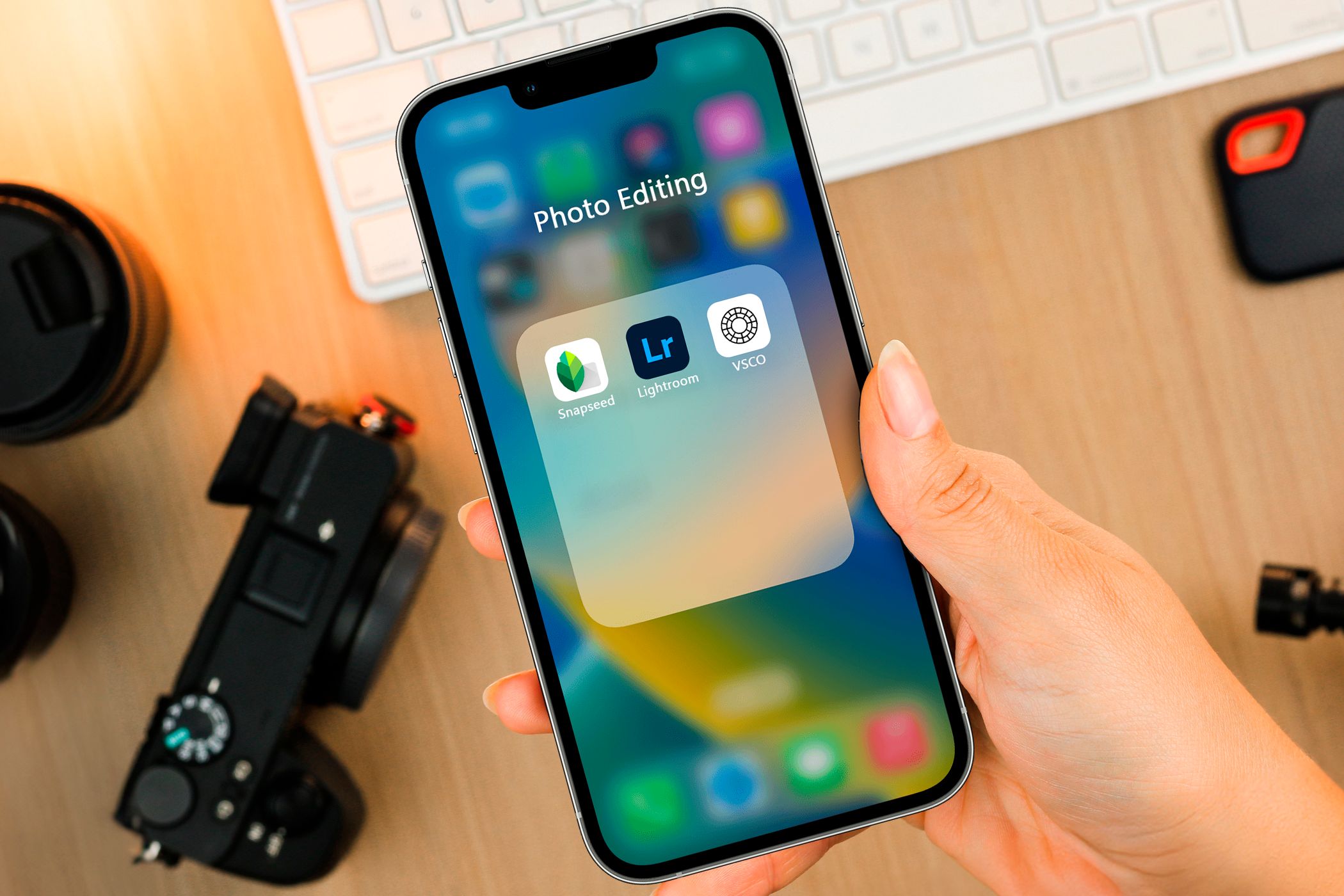
The Only 4 iPhone Photo Editing Apps You’ll Ever Need
While Apple’s Photo app is useful for basic tasks like cropping images, it offers little in the way of advanced editing features. And that’s when third-party image editors come in handy. Here are some apps I rely on for more comprehensive photo editing.
1 VSCO
VSCO has been my go-to editing app since owning an iPhone 5s. VSCO’s free version offers 17 free presets. While I do reach for these presets often, I prefer to tone the intensity down by using the slider instead of using them as is.
For certain images, I prefer manually adjusting the exposure, contrast, saturation, and white balance, as well as using the Vignette and Fade effects available in the app. Once you finish editing an image, you can save all your edits and reuse them by creating a Recipe.
Unlike many editing apps that only work with images from your gallery, VSCO also features a built-in camera. So, if you’re tired of figuring out how to stop your iPhone from auto-enhancing your photos, VSCO provides a solid alternative.
While the app offers a premium subscription, the free version has been adequate since I started using it in 2017. For paid subscribers, VSCO offers an AI-powered Remove tool to erase unwanted elements from images. Upgrading also gives you access to over 200 presets and tools like HSL (hue, saturation, and lightness) that allow you to fine-tune individual colors.
Download:VSCO (Free, subscription available)
2 Snapseed
Finding a completely free editing app packed with all the necessary tools is rare these days, but Google’s Snapseed is an exception. It offers 29 different tools and filters, ranging from basic editing features like Crop and Rotate to advanced options like Perspective and HDR Scape.
Out of all the editing apps I’ve used so far, Snapseed has been the easiest to use. From the minute you open the app, you’ll notice how clutter-free the app’s interface is.
As someone who likes maintaining a cohesive theme on social media, I prefer uploading images with similar lighting for a unified look. Since replicating the same lighting across all images is nearly impossible, I use filters to achieve consistency.
That’s where Snapseed comes into play—it allows you to create your own custom presets. Once you edit an image, all you need to do is head to the Looks tab, scroll all the way to the end, tap the plus (+) icon, and name your preset.
While this is similar to creating a Recipe on VSCO, Snapseed allows you to create unlimited custom presets. So, instead of relying on the same filter that anyone can use, I prefer creating my own and using it whenever I post on social media.
Download:Snapseed (Free)
3 Facetune
Ever captured the perfect selfie but couldn’t post it because of a blemish on your cheek? We’ve all been there. Facetune has been my go-to app for such situations. Whether you want to conceal the eyebags from late-night cramming sessions or whiten your muddy shoes, Facetune can enhance your images quickly and make them look flawless.
Besides removing imperfections from selfies, I frequently use the app to remove distractions from my images. Facetune features a free-to-use Vanish tool that blends the background to make unwanted objects disappear from your image.
Like other editing apps on the list, Facetune offers several paid subscription tiers, including a one-time purchase option that gives you unlimited access to the app. Although the paid version gives you access to more advanced editing features, including a one-tap AI-powered Enhance feature that automatically retouches your entire photo, the free version should be enough for most.
While I agree that apps like Facetune set unrealistic beauty standards, there are still a lot of creative and useful things you can do with Facetune if you use it properly.
Download:Facetune (Free, subscription available)
4 Picsart
Picsart is one of my favorite mobile photo editing apps, and for good reason. While I don’t often use basic tools like cropping, rotating, and adjusting light and color, Picsart’s advanced features truly stand out. Clone and Stretch are two tools I use often. The Clone tool helps fix minor imperfections, while the Stretch tool allows me to warp parts of my images.
If you’ve ever wanted to create a funny image of yourself with a favorite celebrity, you don’t need Photoshop. Picsart’s Cutout feature automatically creates a sticker of you (or any object) by removing the background, which you can paste anywhere. This feature is a great workaround if you want to avoid purchasing Picsart’s subscription for the Remove BG tool.
For those who enjoy adding an artistic flair to their images, Picsart offers a variety of filters in the Effects section. You can adjust the intensity of these effects using the Fade slider to match the vibe of your image.
Like most editing apps nowadays, Picsart has also been introducing more AI features. So, while you can resort to AI art generators, Picsart’s features, such as Smart Background, Text to Image generator, AI Replace, and AI Expand may leave you impressed.
Download:Picsart (Free, subscription available)
While I could use one app that meets all my editing needs, it unfortunately comes with a price tag. So, to save money and benefit from additional features, I prefer using a combination of apps to get the job done.