
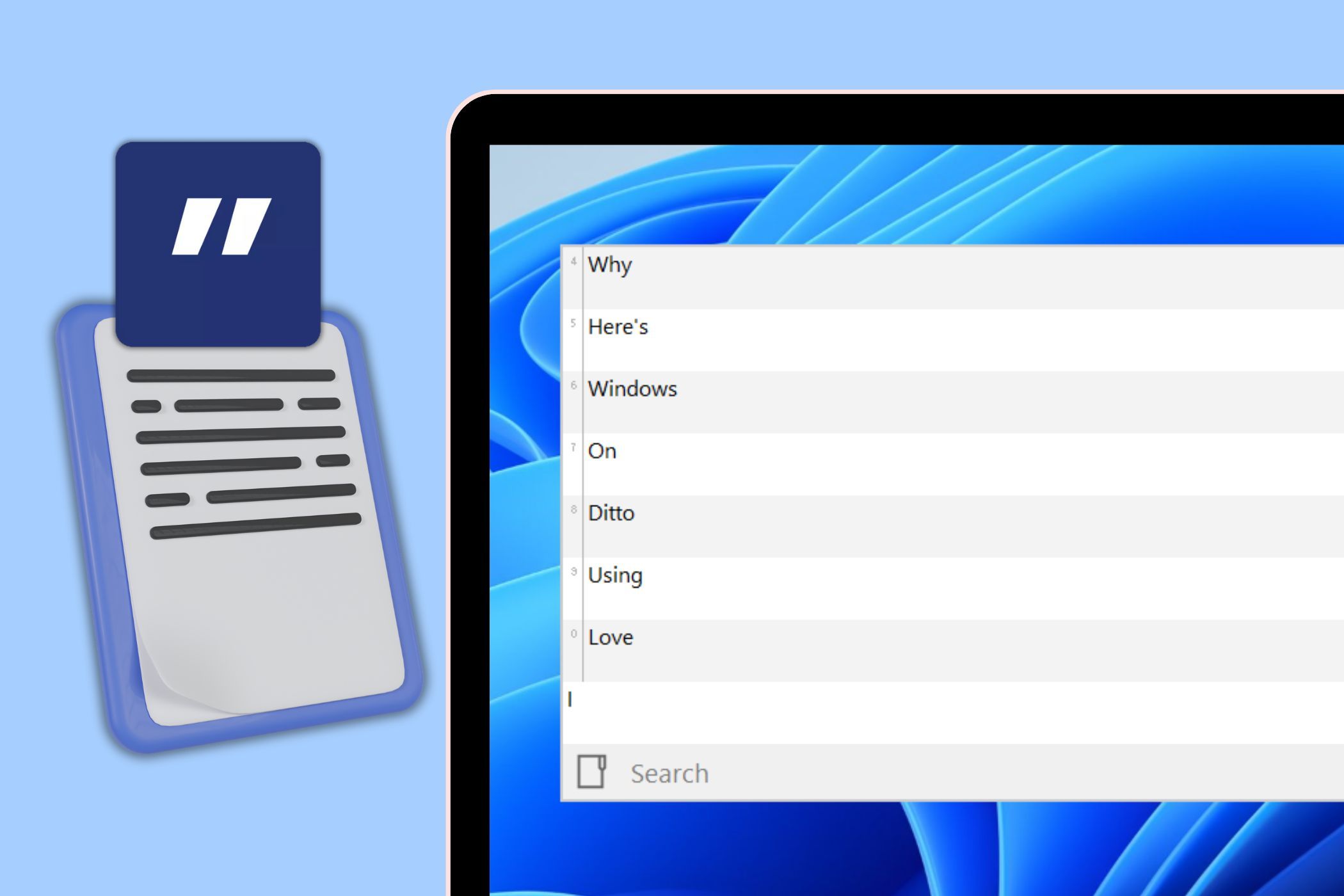
Why I Prefer This App Over Windows Clipboard Now
As someone who works with text all day, I rely heavily on my clipboard. While Windows’ built-in clipboard works as advertised, I recently switched to Ditto, and it has completely transformed the way I manage my copied content.
1
Effortless Grouping of My Clipboard Items
One of my biggest frustrations with Windows Clipboard is its limitation of storing only 25 items at a time. Once that limit is reached, it starts replacing older items, which becomes a problem when you want to refer back to something copied earlier.
Ditto doesn’t have these restrictions and allows me to save as many items as I need. What’s even better is that I can organize clipboard items into groups.
Instead of cluttering the clipboard with pinned items, Ditto lets me separate work-related snippets from personal notes, links, or random ideas.
This makes it much easier to find exactly what I need when I need it. It’s like having multiple clipboards within one app, and it has completely streamlined my workflow.
2
Option to Search Clipboard History
Another feature that gives Ditto an edge over the Windows Clipboard is its built-in search function. With it, I only need to remember a small portion of what I copied, and I can find the exact clip instantly without scrolling endlessly.
The search function also works for images, as Ditto saves all images with a common name—CF_DIF. So, I can simply type “CF_DIF” into the search bar, and it will show me a list of all the images I’ve copied, ready to be pasted wherever I need them.

3
Complete Control Over Clipboard Interface
You know what they say, “One size doesn’t fit all.” The same also holds true for Windows Clipboard. It displays a tiny rectangular window, and there’s no option to resize it.
Ditto, on the other hand, is all about flexibility. I can resize the clipboard window to any size I want. Additionally, I can easily expand or collapse the clipboard with just a click.
Ditto also includes a variety of themes, like Classic, DarkerDitto, or Selenized-Dark, so I can easily match its interface to my custom Windows theme. If I want to customize it further, I can adjust the transparency of the clipboard window and the font style to enhance the overall look and feel of the clipboard.

4
Extensive Support Keyboard Shortcuts
One of my favorite things about Ditto is its extensive support for keyboard shortcuts. It’s a huge time-saver for me, and the best part is that I can customize these shortcuts directly from the app’s settings menu.
For example, I can assign three different keyboard shortcuts to access the clipboard itself. There’s even an option to set a keyboard shortcut for pasting text without the formatting.
However, the one I find most useful is the ability to set up keyboard shortcuts to paste the last 10 clipboard items without opening the clipboard window.
On my PC, I’ve set up shortcuts like Ctrl + Alt + 0, Ctrl + Alt + 1, and Ctrl + Alt + 2, which let me quickly paste the last three clipboard items. This makes copying and pasting multiple snippets much easier.

5
Easy Ordering and Removal
Finally, I like how Ditto simplifies clipboard organization significantly compared to Windows Clipboard. For instance, I can select multiple clipboard items by holding down the Ctrl key and then delete all of them at once. Additionally, I can create or edit clipboard items using the keyboard shortcuts Ctrl + N and Ctrl + E.
If I’ve copied several items and need to arrange them in a specific sequence, Ditto makes that easy, too. I can right-click on any clipboard entry, navigate to Clip Order, and choose from options like Move Up, Move Down, Move to Top, or Move to Last.

This increased flexibility and customization has made Ditto my go-to clipboard app on Windows. Unless Microsoft enhances the Windows Clipboard with these powerful features, it’s hard to imagine ever going back.